WhatsApp has become one of the most effective means of communication in the world since it’s a platform people not only trust but use constantly.
It’s no wonder, then, that people are now adapting WhatsApp to send surveys as well, for customer follow-ups after a purchase, service feedback for restaurants and retail, and much more. That's because WhatsApp’s high engagement and global accessibility make it a natural fit for collecting real-time feedback.
What if I told you that you can build one for yourself, too?
In this tutorial, you’ll learn how to build a complete WhatsApp survey system using Next.js, Strapi, and Twilio.
Prerequisites
To follow through with this tutorial, the following prerequisites should be met:
- Node.js installed (18++)
- Basic understanding of JavaScript.
- Understanding of Next.js
- A code editor.
- A Twilio account (either free or paid). If you are new to Twilio, click here to create a free account.
- ngrok setup
What We're Building
So, here's the scope of the project.
- We'll use Next.js as the frontend to allow us to trigger surveys and view the responses.
- Strapi will serve as the backend, which serves as content management for your survey questions and stores all our responses.
- Finally, we'll use Twilio to handle the messaging layer, managing both outgoing and incoming questions.
Start up your Ngrok
To start up ngrok, run this command:
ngrok http 3000Copy the ngrok URL from your terminal, it’ll look something like https://abcd1234.ngrok.io. You’ll need this for Twilio to send webhook requests to your local development server.
This ensures Twilio can forward replies from users directly into your app while testing locally.
Get your Twilio Credentials
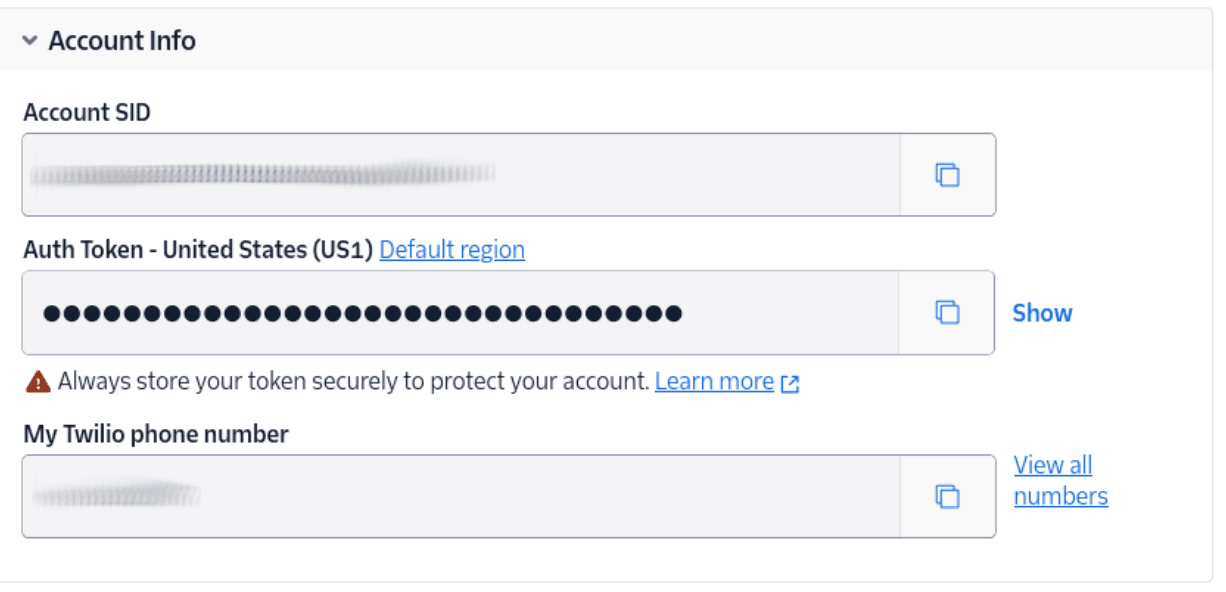
Log in to the Twilio Console. From the Account Info panel of the main dashboard, copy your Account SID, Auth Token, and phone number. Again, store them somewhere safe, for the time being.
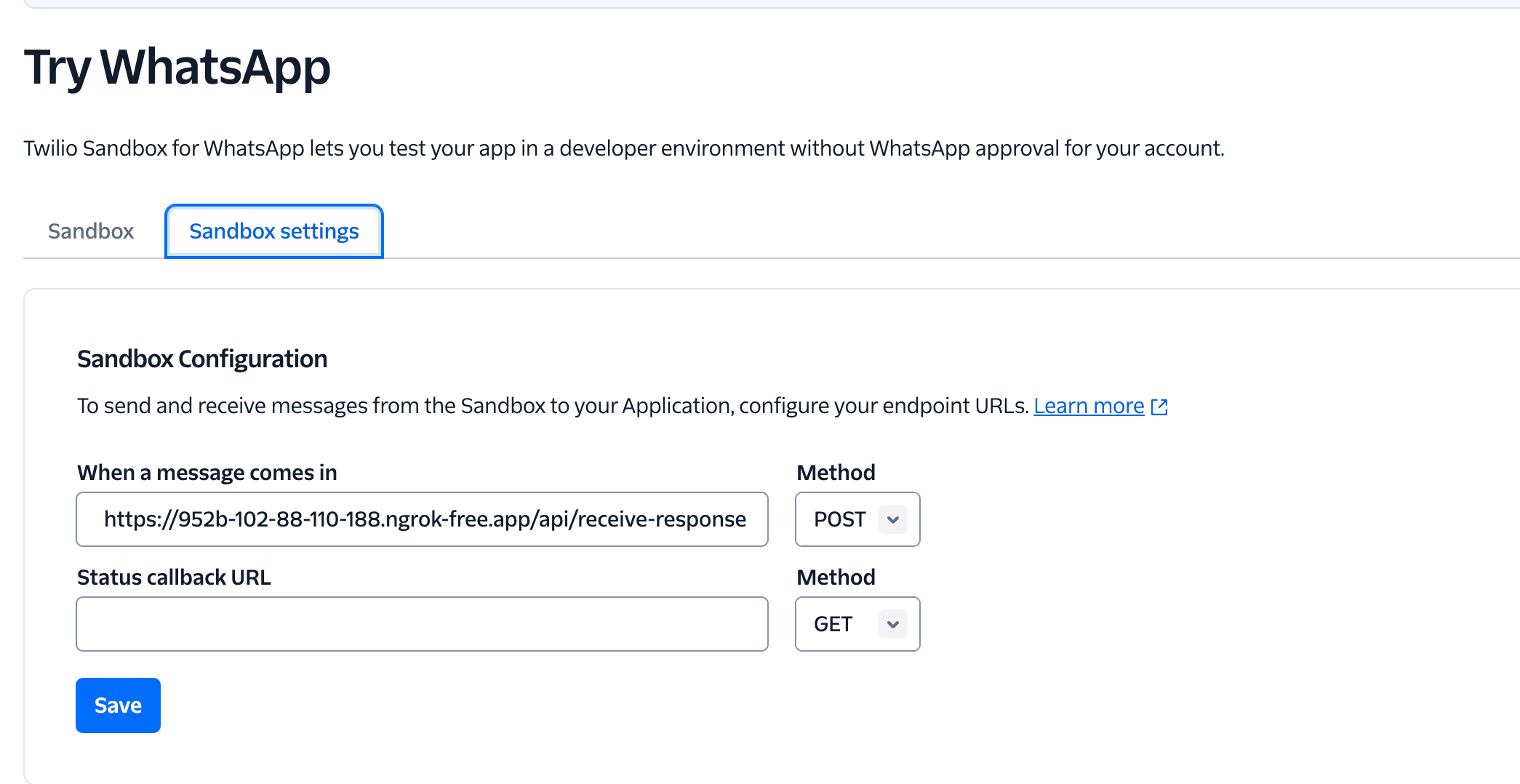
Next, head over to Explore products and click on Messaging and then Try WhatsApp. This will redirect to the WhatsApp sandbox. Head over to the sandbox settings tab and update the URL with this:
your-ngrok-url/api/receive-responseThe receive-response is the webhook and we'll create that later in the tutorial.
Setup Strapi Backend and Collection Types
You need to have Strapi installed on your local machine. Navigate to the folder you want your project installed in the terminal and run this command:
npx create-strapi@latest my-strapi-projectReplace my-strapi-project with the actual project name you intend to use.
Once you've run this command, the terminal will ask if you want to Login/Signup or skip this step. Make your pick by using the arrow keys and pressing Enter. If you opt to log in, you will receive a 30-day trial of the Growth plan, which will be automatically applied to your newly formed project. If you neglect this step, your project will revert to the CMS Free plan.
Proceed to set up Strapi the way you want it.
To start the Strapi application, run the following command in the project folder:
npm run developYou’ll need to sign up to access your Strapi dashboard. After you’re done signing up, you should have a dashboard.
Create Collection Type and Fields in Strapi
The next step to setting up Strapi is to create a collection type. Navigate to Content-Type Builder on the side navigation bar of your dashboard. For this project, we'll create two collection types and click on the + sign to create a new collection type. For this project, we'll create two collection types. One for a survey and the other for a response.
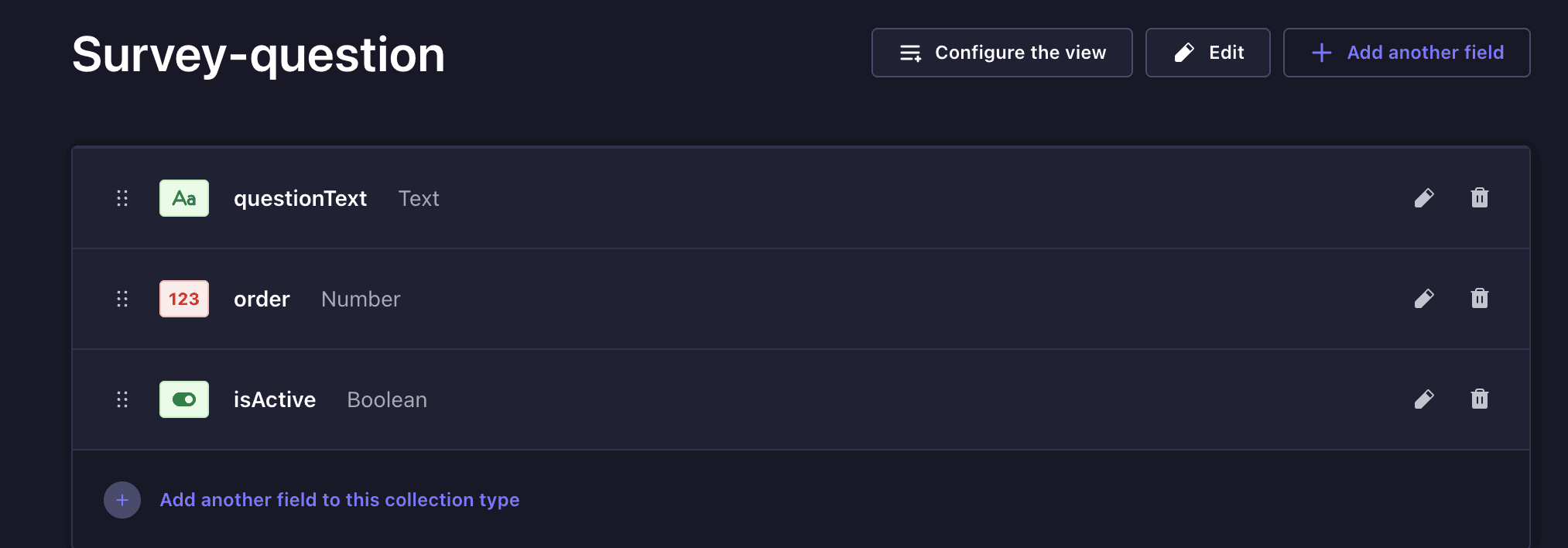
For the first collection type, name it Survey-question and click the "Continue" button. This will take you to the next step: selecting the fields appropriate for your collection type. Give it the following fields:
questionText(Text, required)order(Number, required)isActive(Boolean, default: true)
Click on "finish" and then save the collection type. Your collection type should look like this:
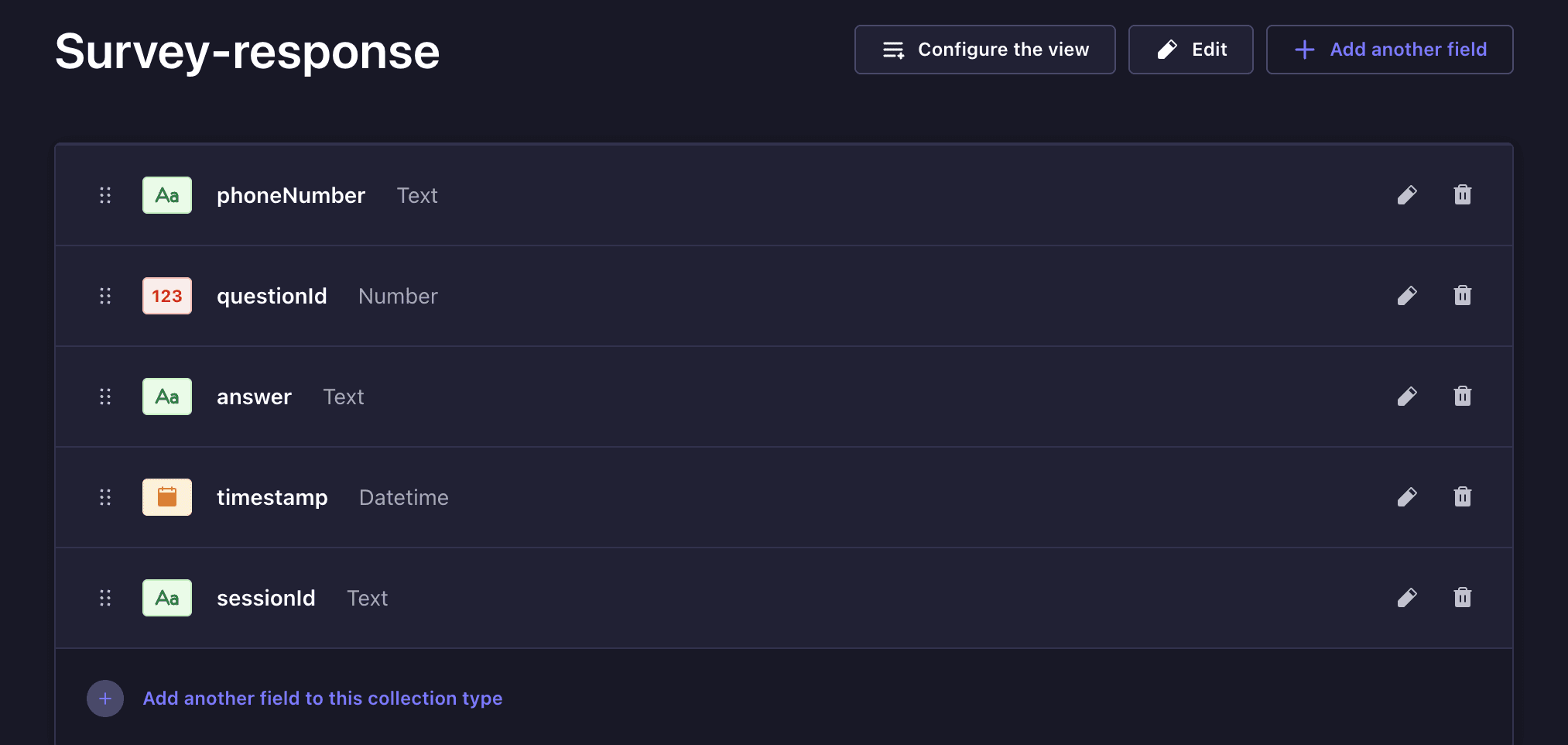
For the second collection, name it survey-response. Click the "Continue" button. This will take you to the next step: selecting the fields appropriate for your collection type. Give it the following fields:
phoneNumber(Text, required)questionId(Number, required)questionText(Text)answer(Text, required)timestamp(DateTime, default: now)
Click on "finish" and then save the collection type. Your collection type should look like this:
Add Sample Questions
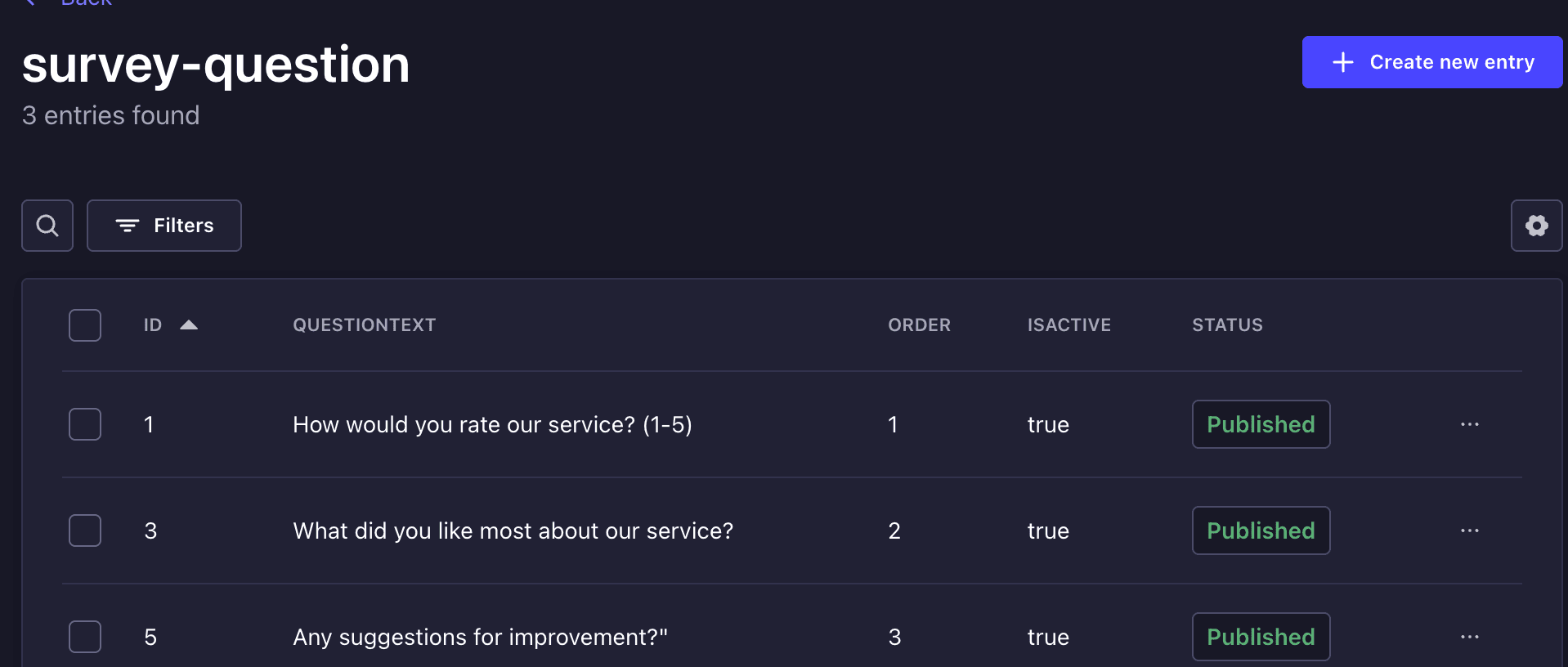
Head over to Content Manager>survey-question and populate with a few questions like:
- Order: 1, Text: "How would you rate our service? (1-5)"
- Order: 2, Text: "What did you like most about your experience?"
- Order: 3, Text: "Any suggestions for improvement?"
Enable Public Access
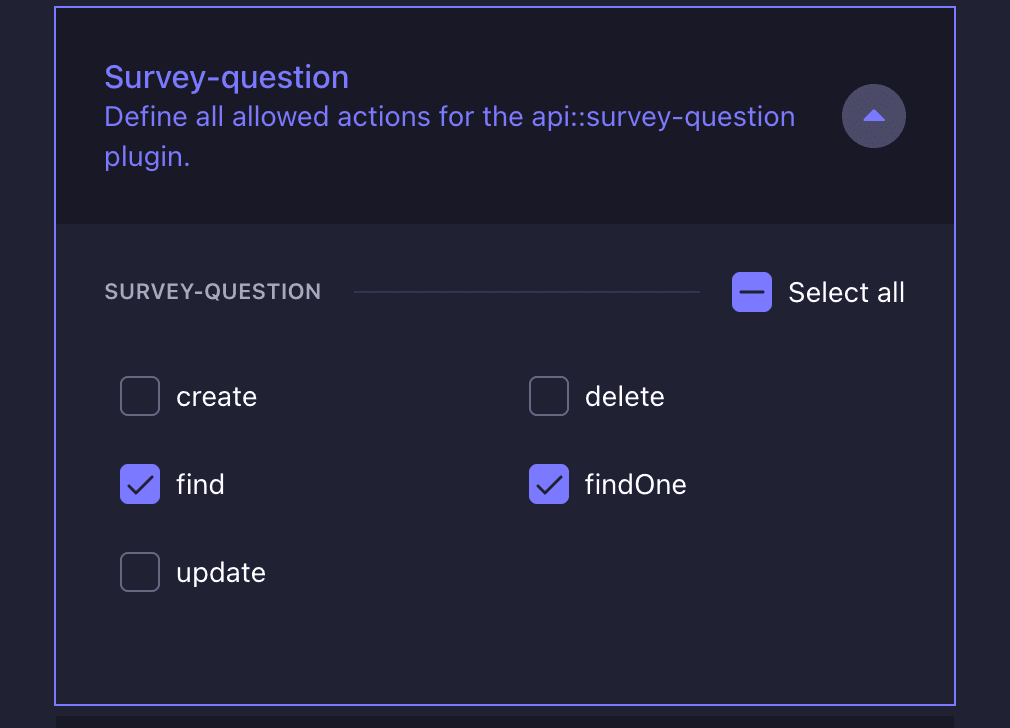
After creating your collection type, navigate to Settings > USERS & PERMISSIONS PLUGIN > Rolesand click on Public. Then scroll down to Permissions, click on survey-question, select find and findOne, and click Save.
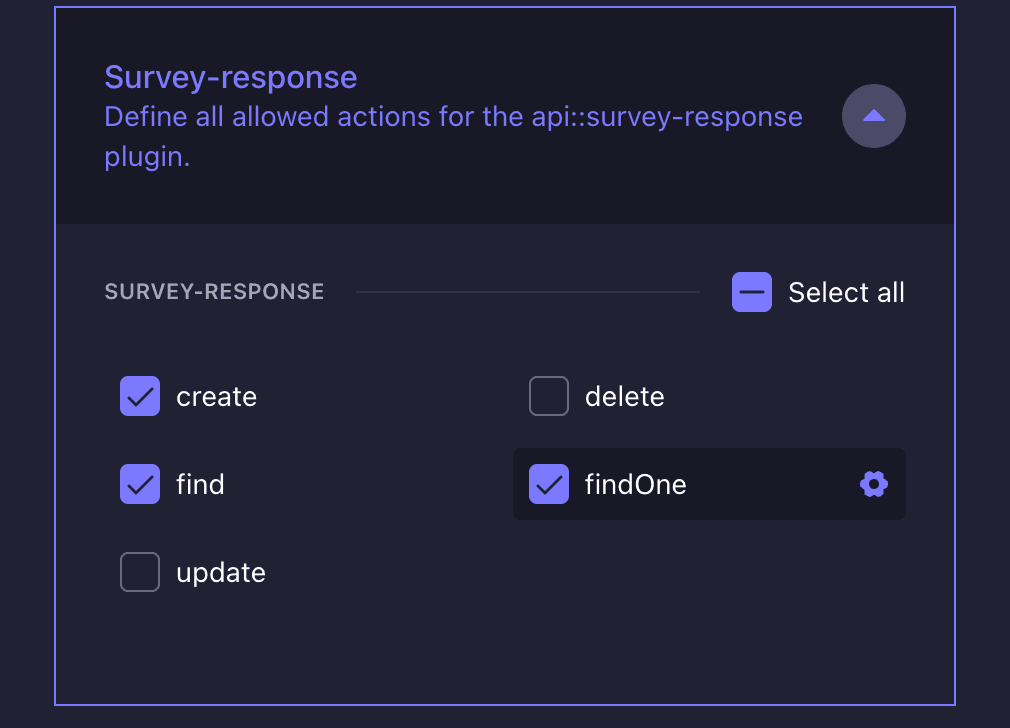
Also, click on survey-response and select create, find, findOne and click Save.
Create an API Token
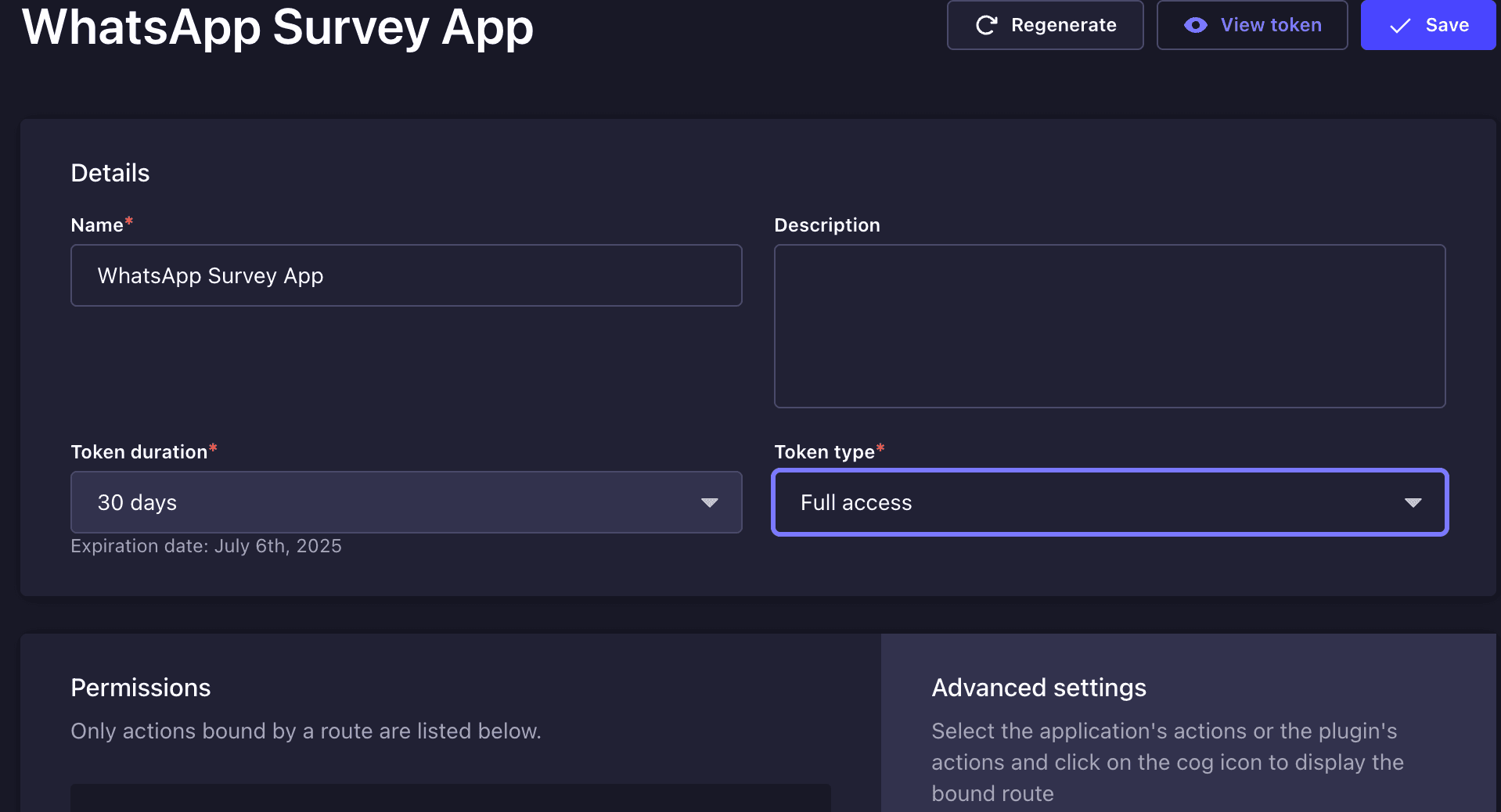
To create an API token, navigate to Settings > API Tokens. Create a new API token and set it, naming it what you want and giving it full access.
So we've finished setting up Strapi. Let us now set up and develop the frontend.
Create the Next.js Project
To install Next.js, navigate back to the project folder in the terminal. Run the following command:
npx create-next-app@latestFollow the instructions to set up your project, but ensure to use the app router because that's what we'll be using in our project:
What is your project named? my-app
Would you like to use TypeScript? No / Yes
Would you like to use ESLint? No / Yes
Would you like to use Tailwind CSS? No / Yes
Would you like your code inside a `src/` directory? No / Yes
Would you like to use App Router? (recommended) No / Yes
Would you like to use Turbopack for `next dev`? No / Yes
Would you like to customize the import alias (`@/*` by default)? No / Yes
What import alias would you like configured? @/*
Below is a representation of how our project folder will look
src/app/
├── api/
│   ├── send-survey/
│   │   └── route.js
│   └── receive-response/
│       └── route.js
├── send-survey/
│   └── page.js
├── responses/
│   └── page.js
├── questions/
│   └── page.js
└── page.js
Environment Variables
Create .env.local in your Next.js project and the Twilio credentials, your Strapi API token as well as the URL like so:
TWILIO_ACCOUNT_SID=your_twilio_account_sid
TWILIO_AUTH_TOKEN=your_twilio_auth_token
TWILIO_WHATSAPP_FROM=whatsapp:+14155238886
STRAPI_API_URL=http://localhost:1337
STRAPI_API_TOKEN=your_strapi_api_token
Install the Required Dependencies
For this project, we'll be installing Twilio and axios.
Open up a terminal and navigate to your project folder. Run the following code:
npm install twilio axiosCreate the API Route for Sending the Survey
You need an API endpoint that will be used to fetch the questions from Strapi and send them via WhatsApp using Twilio.
Create a folder named api in the root project folder, then inside it, add a send-survey subfolder. Inside that, create a file named route.js. Add the following code:
import { NextResponse } from "next/server";
import twilio from "twilio";

const requiredEnvVars = {
  TWILIO_ACCOUNT_SID: process.env.TWILIO_ACCOUNT_SID,
  TWILIO_AUTH_TOKEN: process.env.TWILIO_AUTH_TOKEN,
  TWILIO_WHATSAPP_FROM: process.env.TWILIO_WHATSAPP_FROM,
  STRAPI_API_URL: process.env.STRAPI_API_URL,
  STRAPI_API_TOKEN: process.env.STRAPI_API_TOKEN,
};

const missingVars = Object.entries(requiredEnvVars)
  .filter(([key, value]) => !value)
  .map(([key]) => key);

if (missingVars.length > 0) {
  console.error(`Missing environment variables: ${missingVars.join(", ")}`);
}

const client = twilio(
  process.env.TWILIO_ACCOUNT_SID,
  process.env.TWILIO_AUTH_TOKEN
);

export async function POST(request) {
  try {
    if (missingVars.length > 0) {
      console.error(`Missing environment variables: ${missingVars.join(", ")}`);
      return NextResponse.json(
        { error: `Missing environment variables: ${missingVars.join(", ")}` },
        { status: 500 }
      );
    }

    const { phoneNumber } = await request.json();

    if (!phoneNumber) {
      return NextResponse.json(
        { error: "Phone number is required" },
        { status: 400 }
      );
    }

    const strapiUrl = `${process.env.STRAPI_API_URL}/api/survey-questions?sort=order:asc&pagination[limit]=1`;
    console.log("Fetching from:", strapiUrl); // Debug log

    const response = await fetch(strapiUrl, {
      headers: {
        Authorization: `Bearer ${process.env.STRAPI_API_TOKEN}`,
      },
    });

    if (!response.ok) {
      console.error(
        "Strapi response error:",
        response.status,
        response.statusText
      );
      return NextResponse.json(
        {
          error: `Failed to fetch questions from Strapi: ${response.statusText}`,
        },
        { status: 500 }
      );
    }

    const data = await response.json();
    const firstQuestion = data.data[0];

    if (!firstQuestion) {
      return NextResponse.json(
        { error: "No questions found" },
        { status: 404 }
      );
    }

    const message = await client.messages.create({
      from: process.env.TWILIO_WHATSAPP_FROM,
      to: `whatsapp:${phoneNumber}`,
      body: `📋 Survey Started!\n\nQuestion 1: ${firstQuestion.questionText}\n\nReply with your answer to continue.`,
    });

    return NextResponse.json({ success: true, messageSid: message.sid });
  } catch (error) {
    console.error("Error sending survey:", error);
    return NextResponse.json(
      { error: "Failed to send survey", details: error.message },
      { status: 500 }
    );
  }
}
In the code above, we define a Next.js API route that kicks off a WhatsApp survey. It begins by verifying that all required environment variables, such as Twilio and Strapi credentials, are set. If anything’s missing, it logs an error and returns a failure response.
Once a valid phone number is received in the request body, the route fetches the first survey question from Strapi. If a question is found, it sends it to the user via WhatsApp using Twilio. The response confirms the message was sent and includes the message SID for reference. This route acts as the entry point for starting any new survey session.
Create an API Route for Receiving Responses
You also need a webhook in which Twilio will call when a user replies to a survey message. This will be used to process their answer, save it to Strapi, and send the next question.
In the src/app/api/ folder, create a folder called receive-response. Inside it, create a file called route.js. To explain better, let's break the logic into reusable steps and helper functions:
First, you need to set up imports and environment variables, and also create a function that gets the current question. Add the following:
Step 1: Create Environment Variable and getCurrentQuestionForUser Function
import { NextResponse } from "next/server";
import twilio from "twilio";

const requiredEnvVars = {
  TWILIO_ACCOUNT_SID: process.env.TWILIO_ACCOUNT_SID,
  TWILIO_AUTH_TOKEN: process.env.TWILIO_AUTH_TOKEN,
  TWILIO_WHATSAPP_FROM: process.env.TWILIO_WHATSAPP_FROM,
  STRAPI_API_URL: process.env.STRAPI_API_URL,
  STRAPI_API_TOKEN: process.env.STRAPI_API_TOKEN,
};

const missingVars = Object.entries(requiredEnvVars)
  .filter(([key, value]) => !value)
  .map(([key]) => key);

if (missingVars.length > 0) {
  console.error(`Missing environment variables: ${missingVars.join(", ")}`);
}

const client = twilio(
  process.env.TWILIO_ACCOUNT_SID,
  process.env.TWILIO_AUTH_TOKEN
);

async function getCurrentQuestionForUser(phoneNumber) {
  try {
    console.log(`🔍 Getting current question for ${phoneNumber}`);
    const allQuestionsResponse = await fetch(
      `${process.env.STRAPI_API_URL}/api/survey-questions?sort=order:asc`,
      {
        headers: {
          Authorization: `Bearer ${process.env.STRAPI_API_TOKEN}`,
        },
      }
    );

    if (!allQuestionsResponse.ok) {
      throw new Error(
        `Failed to fetch questions: ${allQuestionsResponse.status} ${allQuestionsResponse.statusText}`
      );
    }

    const allQuestionsData = await allQuestionsResponse.json();
    const allQuestions = allQuestionsData.data;
    console.log(`Found ${allQuestions.length} total questions`);

    console.log(
      "First question structure:",
      JSON.stringify(allQuestions[0], null, 2)
    );
    console.log(
      "Question orders:",
      allQuestions.map((q) => q.order)
    );

    if (allQuestions.length === 0) {
      console.log("No questions found in Strapi");
      return { question: null, isFirstQuestion: false };
    }

    console.log(`Fetching responses for phone: "${phoneNumber}"`);

    let responsesResponse;
    let userResponses = [];

    try {
      const encodedPhone = encodeURIComponent(phoneNumber);
      const url1 = `${process.env.STRAPI_API_URL}/api/survey-responses?filters[phoneNumber][$eq]=${encodedPhone}&sort=createdAt:asc`;
      console.log(`🔍 Trying URL 1: ${url1}`);

      responsesResponse = await fetch(url1, {
        headers: {
          Authorization: `Bearer ${process.env.STRAPI_API_TOKEN}`,
        },
      });

      if (responsesResponse.ok) {
        const responsesData = await responsesResponse.json();
        userResponses = responsesData.data || [];
        console.log(`Approach 1 found ${userResponses.length} responses`);
      }
    } catch (error) {
      console.log("Approach 1 failed:", error.message);
    }

    if (userResponses.length === 0) {
      try {
        console.log(
          "Trying approach 2: Get all responses and filter manually"
        );
        const url2 = `${process.env.STRAPI_API_URL}/api/survey-responses?sort=createdAt:asc`;

        responsesResponse = await fetch(url2, {
          headers: {
            Authorization: `Bearer ${process.env.STRAPI_API_TOKEN}`,
          },
        });

        if (responsesResponse.ok) {
          const allResponsesData = await responsesResponse.json();
          const allResponses = allResponsesData.data || [];

          console.log(`Total responses in DB: ${allResponses.length}`);
          console.log(
            "First response structure:",
            JSON.stringify(allResponses[0], null, 2)
          );

          userResponses = allResponses.filter((response) => {
            const storedPhone =
              response.phoneNumber || response.data?.phoneNumber;
            console.log(`Comparing "${storedPhone}" with "${phoneNumber}"`);
            return storedPhone === phoneNumber;
          });

          console.log(
            ` Manual filter found ${userResponses.length} responses for ${phoneNumber}`
          );
        }
      } catch (error) {
        console.log("Approach 2 failed:", error.message);
      }
    }

    console.log(
      ` Final result: Found ${userResponses.length} existing responses for ${phoneNumber}`
    );

    console.log(
      "Full response structure:",
      JSON.stringify(userResponses[0], null, 2)
    );

    userResponses.forEach((resp, idx) => {
      const questionId =
        resp.attributes?.questionId || resp.questionId || resp.data?.questionId;
      const answer =
        resp.attributes?.answer || resp.answer || resp.data?.answer;
      console.log(`  Response ${idx + 1}: Q${questionId} = "${answer}"`);
    });

    if (userResponses.length === 0) {
      console.log("First question for this user");
      return { question: allQuestions[0], isFirstQuestion: true };
    }

    const answeredQuestionIds = userResponses
      .map(
        (response) =>
          response.questionId ||
          response.data?.questionId
      )
      .filter((id) => id !== undefined);
    console.log("Answered question IDs:", answeredQuestionIds);

    const nextQuestion = allQuestions.find(
      (q) => !answeredQuestionIds.includes(q.order)
    );

    if (nextQuestion) {
      console.log(`Next question to answer: Q${nextQuestion.order}`);
    } else {
      console.log("All questions have been answered!");
    }

    return { question: nextQuestion, isFirstQuestion: false };
  } catch (error) {
    console.error(" Error in getCurrentQuestionForUser:", error);
    return { question: null, isFirstQuestion: false };
  }
}
The getCurrentQuestionForUser function checks which survey question a user should be asked next. It fetches all questions from Strapi and figures out which questions they've already answered.
Step 2: Create getNextQuestion Function
When a user answers a question, it should move on to the next, so we need a function that grabs the next question. Right after the getCurrentQuestionForUser add this:
async function getNextQuestion(currentOrder) {
  try {
    console.log(`🔍 Looking for question after order ${currentOrder}`);

    const response = await fetch(
      `${process.env.STRAPI_API_URL}/api/survey-questions?filters[order][$gt]=${currentOrder}&sort=order:asc&pagination[limit]=1`,
      {
        headers: {
          Authorization: `Bearer ${process.env.STRAPI_API_TOKEN}`,
        },
      }
    );

    if (!response.ok) {
      throw new Error(
        `Failed to fetch next question: ${response.status} ${response.statusText}`
      );
    }

    const data = await response.json();
    const nextQuestion = data.data[0] || null;

    if (nextQuestion) {
      console.log(`Found next question: Q${nextQuestion.order}`);
    } else {
      console.log(" No more questions - survey complete");
    }

    return nextQuestion;
  } catch (error) {
    console.error("Error in getNextQuestion:", error);
    return null;
  }
}
The getNextQuestion function fetches the next survey question after a given order value. It queries Strapi for the next question where order is greater than currentOrder, sorted in ascending order, and limited to just one result. If found, it returns that question; if not, it logs that the survey is complete.
Step 3: Create SaveResponse Function
Lastly, you want to save the response of the user when they are done with the survey. Right after the getNextQuestion, add this:
async function saveResponse(phoneNumber, question, answer) {
  try {
    const questionData = question;
    const payload = {
      data: {
        phoneNumber,
        questionId: questionData.order,
        answer,
        timestamp: new Date().toISOString(),
      },
    };

    console.log("Saving payload:", JSON.stringify(payload, null, 2));

    const response = await fetch(
      `${process.env.STRAPI_API_URL}/api/survey-responses`,
      {
        method: "POST",
        headers: {
          "Content-Type": "application/json",
          Authorization: `Bearer ${process.env.STRAPI_API_TOKEN}`,
        },
        body: JSON.stringify(payload),
      }
    );

    if (!response.ok) {
      const errorText = await response.text();
      console.error(`Save failed: ${response.status} ${response.statusText}`);
      console.error("Error details:", errorText);
      throw new Error(
        `Failed to save response: ${response.statusText} - ${errorText}`
      );
    }

    const result = await response.json();
    console.log("Response saved successfully:", result.data?.id);
    return { success: true, data: result };
  } catch (error) {
    console.error(" Error in saveResponse:", error);
    return { success: false, error: error.message };
  }
}
The saveResponse function saves a user's answer to a survey question in Strapi. It builds a payload with the phone number, question order, answer, and a timestamp. It then sends this data as a POST request to the /survey-responses endpoint.
Step 4: Create Main Function Now let's wire everything inside a main function:
export async function POST(request) {
  try {
    console.log("=== WEBHOOK RECEIVED ===");

    if (missingVars.length > 0) {
      console.error(`Missing environment variables: ${missingVars.join(", ")}`);
      return new NextResponse("Configuration Error", { status: 500 });
    }

    const formData = await request.formData();
    const from = formData.get("From");
    const body = formData.get("Body");
    const phoneNumber = from.replace("whatsapp:", "");

    console.log(`From: ${phoneNumber}`);
    console.log(` Message: ${body}`);
    console.log(`Strapi URL: ${process.env.STRAPI_API_URL}`);

    console.log("Testing Strapi connection...");
    try {
      const testResponse = await fetch(
        `${process.env.STRAPI_API_URL}/api/survey-questions`,
        {
          headers: {
            Authorization: `Bearer ${process.env.STRAPI_API_TOKEN}`,
          },
        }
      );
      console.log(
        `Strapi connection: ${testResponse.status} ${testResponse.statusText}`
      );
    } catch (strapiError) {
      console.error("Strapi connection failed:", strapiError.message);
      return new NextResponse("Strapi Connection Error", { status: 500 });
    }

    const currentQuestionInfo = await getCurrentQuestionForUser(phoneNumber);
    console.log("Current question info:", currentQuestionInfo);

    if (currentQuestionInfo.question) {
      console.log(
        `Saving response for question ${currentQuestionInfo.question.order}`
      );

      const saveResult = await saveResponse(
        phoneNumber,
        currentQuestionInfo.question,
        body
      );
      console.log("Save result:", saveResult);

      const nextQuestion = await getNextQuestion(
        currentQuestionInfo.question.order
      );
      console.log("Next question:", nextQuestion);

      if (nextQuestion) {
        const message = await client.messages.create({
          from: process.env.TWILIO_WHATSAPP_FROM,
          to: from,
          body: `Question ${nextQuestion.order}: ${nextQuestion.questionText}`,
        });
        console.log(
          `Sent question ${nextQuestion.order} to ${phoneNumber} (SID: ${message.sid})`
        );
      } else {
        const message = await client.messages.create({
          from: process.env.TWILIO_WHATSAPP_FROM,
          to: from,
          body: " Thank you for completing our survey! Your feedback is valuable to us.",
        });
        console.log(
          `Survey completed for ${phoneNumber} (SID: ${message.sid})`
        );
      }
    } else {
      const message = await client.messages.create({
        from: process.env.TWILIO_WHATSAPP_FROM,
        to: from,
        body: "Hi! You don't have an active survey. Please wait for a new survey to be sent to you.",
      });
      console.log(` No active survey for ${phoneNumber} (SID: ${message.sid})`);
    }

    return new NextResponse("OK");
  } catch (error) {
    console.error("Error processing response:", error);
    console.error("Stack trace:", error.stack);
    return new NextResponse("Error", { status: 500 });
  }
}
The POST function handles incoming WhatsApp messages. It checks the config, gets the user's message and phone number, confirms Strapi is reachable, and then wires together the other functions. It finds the current question, saves the user's answer, fetches the next question, and replies via WhatsApp. Once the survey is done, it sends a thank-you message.
Create the Send Survey Page
You need a page where a user can enter a WhatsApp number to which the survey questions are to be sent.
In the src/app, create a folder called send-survey. Inside it, create a file called page.js and add the following code:
"use client";
import { useState } from "react";

export default function SendSurvey() {
  const [phoneNumber, setPhoneNumber] = useState("");
  const [loading, setLoading] = useState(false);
  const [message, setMessage] = useState("");

  const handleSendSurvey = async (e) => {
    e.preventDefault();
    setLoading(true);
    setMessage("");

    try {
      const response = await fetch("/api/send-survey", {
        method: "POST",
        headers: {
          "Content-Type": "application/json",
        },
        body: JSON.stringify({ phoneNumber }),
      });

      const data = await response.json();

      if (response.ok) {
        setMessage("Survey sent successfully!");
        setPhoneNumber("");
      } else {
        setMessage(`Error: ${data.error}`);
      }
    } catch (error) {
      setMessage("Failed to send survey");
    } finally {
      setLoading(false);
    }
  };

  return (
    <div className="container mx-auto px-4 py-8">
      <div className="mb-4">
        <a href="/" className="text-blue-600 hover:text-blue-800">
          ← Back to Home
        </a>
      </div>

      <h1 className="text-3xl font-bold mb-8">Send WhatsApp Survey</h1>

      <div className="max-w-md mx-auto bg-white p-6 rounded-lg shadow-md">
        <form onSubmit={handleSendSurvey}>
          <div className="mb-4">
            <label
              htmlFor="phoneNumber"
              className="block text-sm font-medium text-gray-700 mb-2"
            >
              Phone Number (with country code)
            </label>
            <input
              type="tel"
              id="phoneNumber"
              value={phoneNumber}
              onChange={(e) => setPhoneNumber(e.target.value)}
              placeholder="+1234567890"
              className="w-full px-3 py-2 border border-gray-300 rounded-md focus:outline-none focus:ring-2 focus:ring-blue-500"
              required
            />
          </div>

          <button
            type="submit"
            disabled={loading}
            className="w-full bg-green-600 text-white py-2 px-4 rounded-md hover:bg-green-700 disabled:opacity-50"
          >
            {loading ? "Sending..." : "Send Survey"}
          </button>
        </form>

        {message && (
          <div
            className={`mt-4 p-3 rounded-md ${
              message.includes("Error")
                ? "bg-red-100 text-red-700"
                : "bg-green-100 text-green-700"
            }`}
          >
            {message}
          </div>
        )}
      </div>
    </div>
  );
}
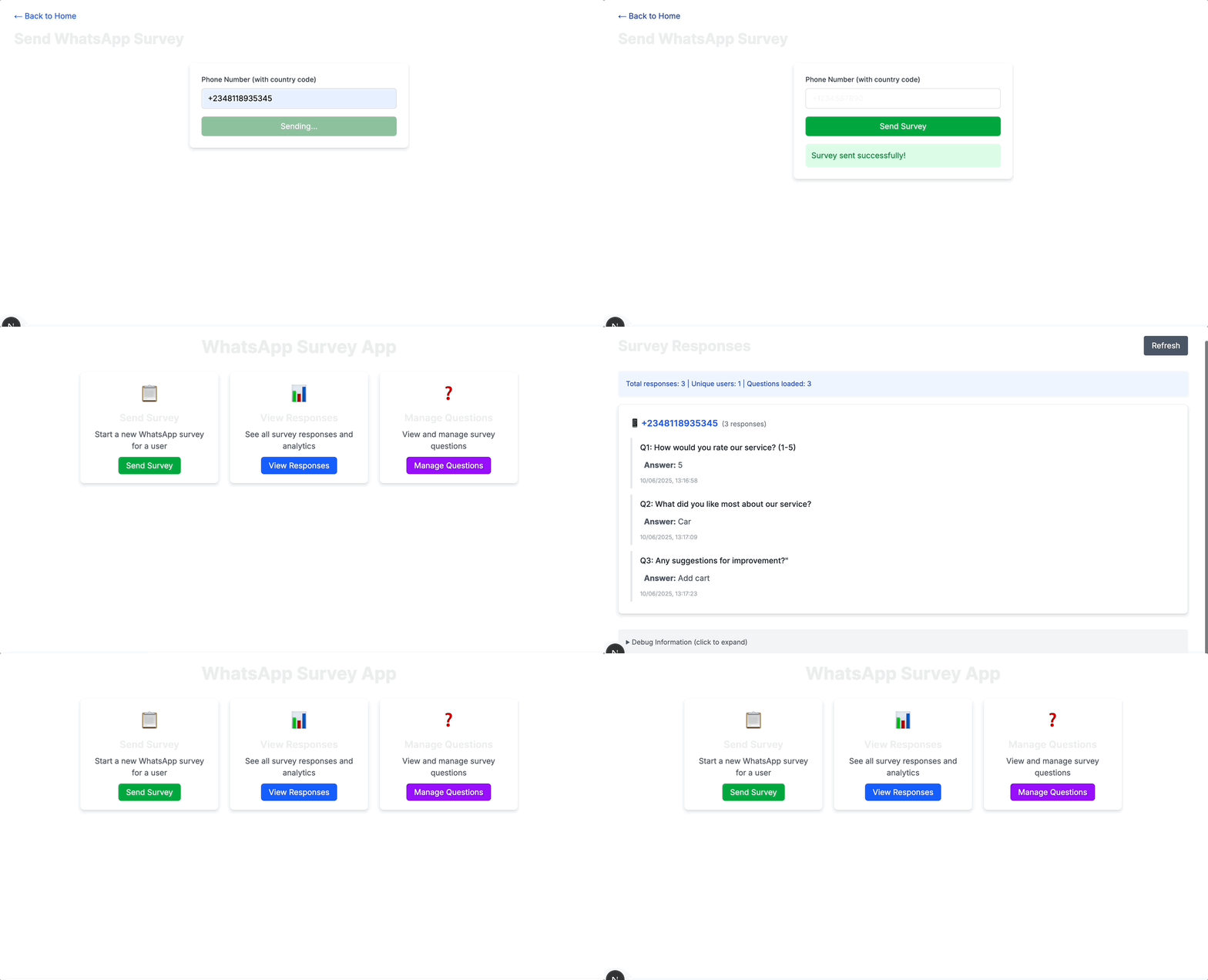
The code above creates a component that powers the “Send Survey” page, which allows an admin or operator to trigger a WhatsApp survey for any phone number. The user enters a number, submits the form, and the app sends a request to the /api/send-survey endpoint.
Create the View Responses Page
In the src/app, create a folder called responses. Inside it, create a file called page.js and add the following code:
"use client";
import { useState, useEffect } from "react";

export default function Responses() {
  const [responses, setResponses] = useState([]);
  const [loading, setLoading] = useState(true);
  const [error, setError] = useState("");
  const [groupedResponses, setGroupedResponses] = useState({});

  useEffect(() => {
    fetchResponses();
  }, []);

  const fetchResponses = async () => {
    try {
      setLoading(true);
      setError("");

      const strapiUrl =
        process.env.NEXT_PUBLIC_STRAPI_API_URL || "http://localhost:1337";
      console.log("Fetching from:", `${strapiUrl}/api/survey-responses`);

      const response = await fetch(
        `${strapiUrl}/api/survey-responses?sort=createdAt:desc`,
        {
          headers: {
            "Content-Type": "application/json",
          },
        }
      );

      if (!response.ok) {
        throw new Error(`HTTP error! status: ${response.status}`);
      }

      const data = await response.json();
      console.log("Raw API response:", data);

      const responseData = data.data || [];
      setResponses(responseData);

      const grouped = responseData.reduce((acc, response) => {

        const phone =
          response.phoneNumber ||
          response.data?.phoneNumber;

        if (phone) {
          if (!acc[phone]) {
            acc[phone] = [];
          }
          acc[phone].push(response);
        }
        return acc;
      }, {});

      console.log("Grouped responses:", grouped);
      setGroupedResponses(grouped);
    } catch (error) {
      console.error("Error fetching responses:", error);
      setError(`Failed to fetch responses: ${error.message}`);
    } finally {
      setLoading(false);
    }
  };

  const getResponseValue = (response, field) => {
    return (
      response.attributes?.[field] ||
      response[field] ||
      response.data?.[field] ||
      "N/A"
    );
  };

  if (loading) {
    return (
      <div className="container mx-auto px-4 py-8">
        <div className="text-center">Loading responses...</div>
      </div>
    );
  }

  if (error) {
    return (
      <div className="container mx-auto px-4 py-8">
        <div className="bg-red-100 border border-red-400 text-red-700 px-4 py-3 rounded mb-4">
          {error}
        </div>
        <button
          onClick={fetchResponses}
          className="bg-blue-600 text-white px-4 py-2 rounded hover:bg-blue-700"
        >
          Retry
        </button>
      </div>
    );
  }

  return (
    <div className="container mx-auto px-4 py-8">
      <div className="mb-4">
        <a href="/" className="text-blue-600 hover:text-blue-800">
          ← Back to Home
        </a>
      </div>

      <div className="flex justify-between items-center mb-8">
        <h1 className="text-3xl font-bold">Survey Responses</h1>
        <button
          onClick={fetchResponses}
          className="bg-gray-600 text-white px-4 py-2 rounded hover:bg-gray-700"
          disabled={loading}
        >
          Refresh
        </button>
      </div>

      <div className="mb-4 bg-blue-50 p-4 rounded">
        <p className="text-sm text-blue-700">
          Total responses: {responses.length} | Unique users:{" "}
          {Object.keys(groupedResponses).length}
        </p>
      </div>

      {Object.keys(groupedResponses).length === 0 ? (
        <div className="text-center py-12">
          <div className="text-6xl mb-4">📊</div>
          <p className="text-gray-600 text-lg">No responses yet.</p>
          <p className="text-gray-500 text-sm mt-2">
            Send a survey to get started!
          </p>
        </div>
      ) : (
        <div className="space-y-6">
          {Object.entries(groupedResponses).map(
            ([phoneNumber, userResponses]) => (
              <div
                key={phoneNumber}
                className="bg-white p-6 rounded-lg shadow-md border"
              >
                <h3 className="text-lg font-semibold mb-4 text-blue-600">
                  📱 {phoneNumber}
                  <span className="ml-2 text-sm text-gray-500 font-normal">
                    ({userResponses.length} response
                    {userResponses.length !== 1 ? "s" : ""})
                  </span>
                </h3>

                <div className="space-y-3">
                  {userResponses
                    .sort((a, b) => {
                      const aOrder = getResponseValue(a, "questionId");
                      const bOrder = getResponseValue(b, "questionId");
                      return aOrder - bOrder;
                    })
                    .map((response, index) => (
                      <div
                        key={response.id || index}
                        className="border-l-4 border-gray-200 pl-4 py-2"
                      >
                        <p className="font-medium text-gray-800">
                          Q{getResponseValue(response, "questionId")}:{" "}
                          {getResponseValue(response, "questionText")}
                        </p>
                        <p className="text-gray-600 mt-1 bg-gray-50 p-2 rounded">
                          <strong>Answer:</strong>{" "}
                          {getResponseValue(response, "answer")}
                        </p>
                        <p className="text-xs text-gray-400 mt-1">
                          {new Date(
                            getResponseValue(response, "timestamp") ||
                              getResponseValue(response, "createdAt")
                          ).toLocaleString()}
                        </p>
                      </div>
                    ))}
                </div>
              </div>
            )
          )}
        </div>
      )}

      {/* Debug section - remove in production */}
      <details className="mt-8 bg-gray-100 p-4 rounded">
        <summary className="cursor-pointer text-sm text-gray-600">
          Debug Information (click to expand)
        </summary>
        <pre className="mt-2 text-xs overflow-auto">
          {JSON.stringify(
            { responses: responses.slice(0, 2), groupedResponses },
            null,
            2
          )}
        </pre>
      </details>
    </div>
  );
}
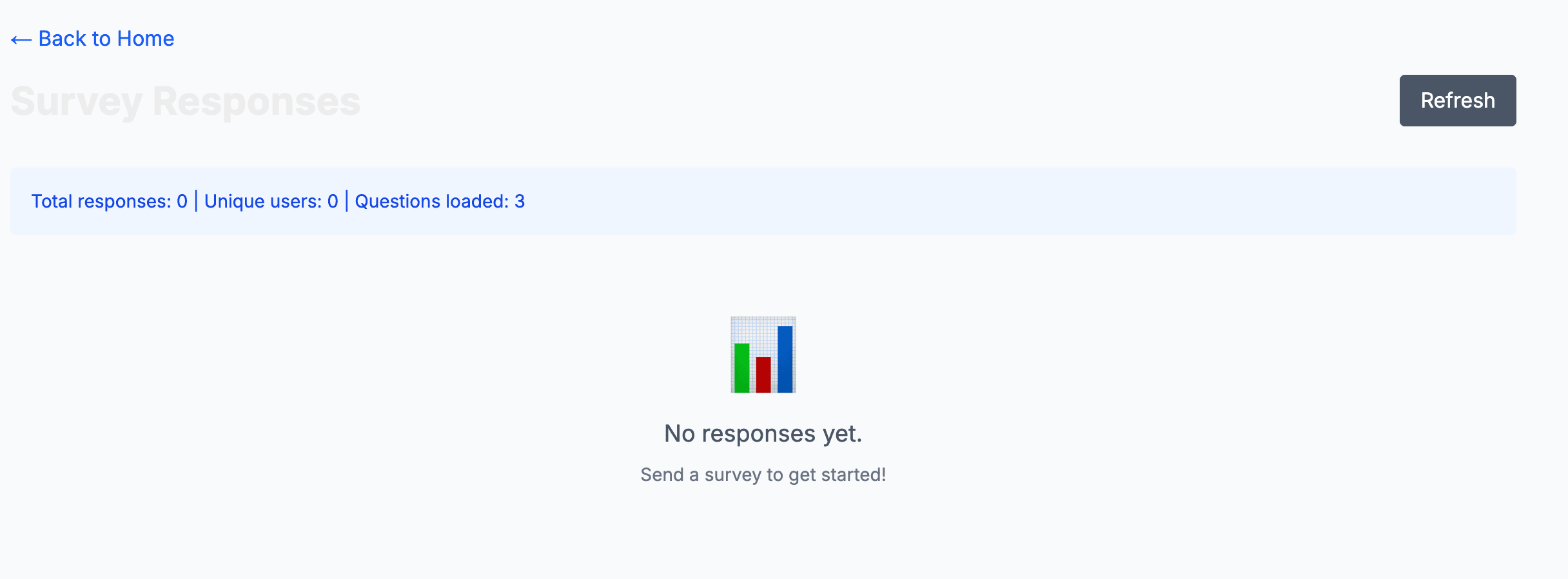
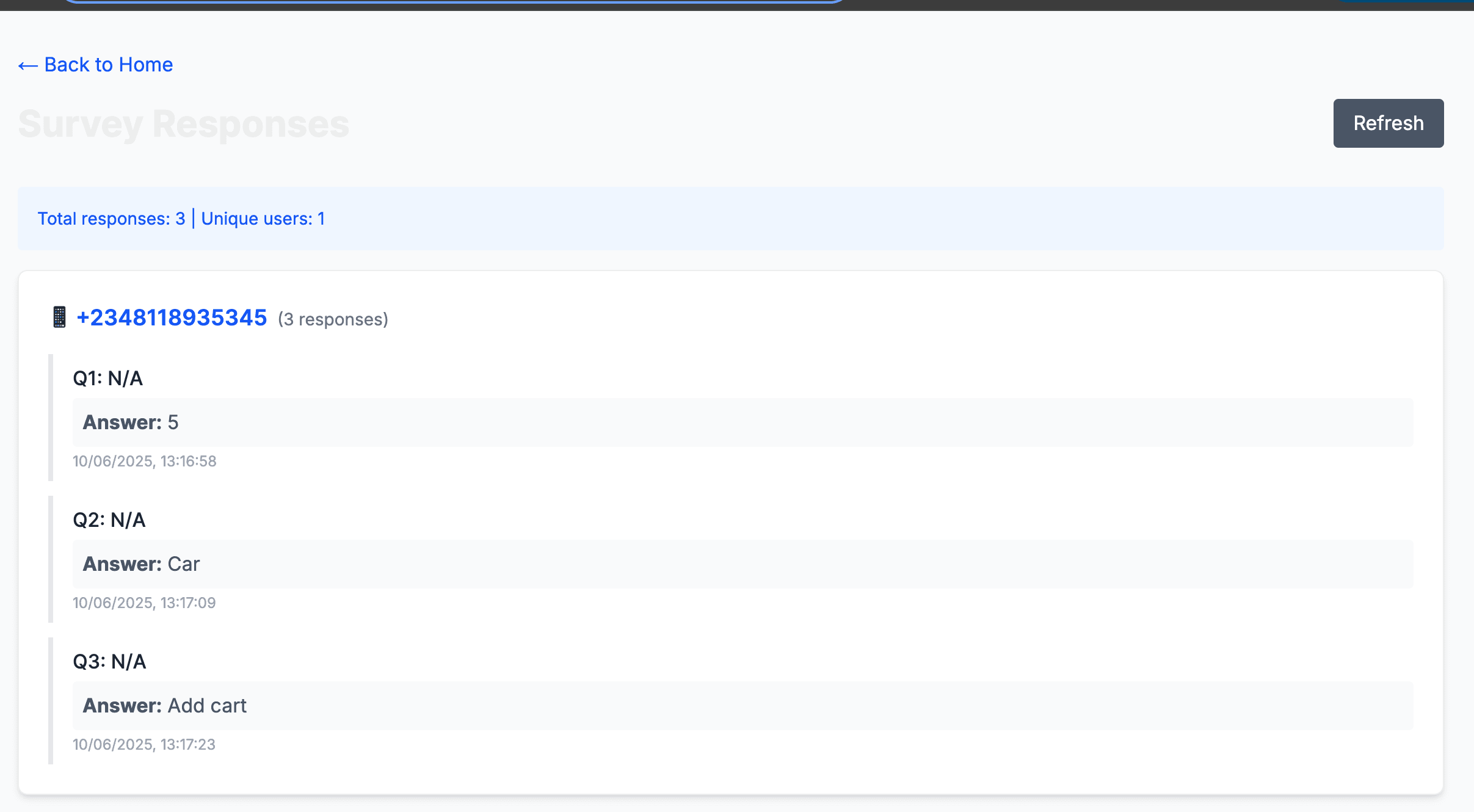
The code above creates a component that displays the responses. When the page loads, it fetches all survey responses from Strapi and organizes them by phone number.
Below is an image of the response page:
Create the Manage Questions Page
In the src/app folder, create a subfolder called questions. Inside it, create a file called page.js and add the following code:
"use client";
import { useState, useEffect } from "react";

export default function Questions() {
  const [questions, setQuestions] = useState([]);
  const [loading, setLoading] = useState(true);
  const [error, setError] = useState("");

  useEffect(() => {
    fetchQuestions();
  }, []);

  const fetchQuestions = async () => {
    try {
      setLoading(true);
      setError("");

      const strapiUrl =
        process.env.NEXT_PUBLIC_STRAPI_API_URL || "http://localhost:1337";
      console.log(
        "Fetching questions from:",
        `${strapiUrl}/api/survey-questions`
      );

      const response = await fetch(
        `${strapiUrl}/api/survey-questions?sort=order:asc`,
        {
          headers: {
            "Content-Type": "application/json",
          },
        }
      );

      if (!response.ok) {
        throw new Error(`HTTP error! status: ${response.status}`);
      }

      const data = await response.json();
      console.log("Questions API response:", data);

      const questionsData = data.data || [];
      setQuestions(questionsData);
    } catch (error) {
      console.error("Error fetching questions:", error);
      setError(`Failed to fetch questions: ${error.message}`);
    } finally {
      setLoading(false);
    }
  };

  const getQuestionValue = (question, field) => {
    return (
      question[field] ||
      question.data?.[field] ||
      "N/A"
    );
  };

  if (loading) {
    return (
      <div className="container mx-auto px-4 py-8">
        <div className="text-center">Loading questions...</div>
      </div>
    );
  }

  if (error) {
    return (
      <div className="container mx-auto px-4 py-8">
        <div className="bg-red-100 border border-red-400 text-red-700 px-4 py-3 rounded mb-4">
          {error}
        </div>
        <button
          onClick={fetchQuestions}
          className="bg-blue-600 text-white px-4 py-2 rounded hover:bg-blue-700"
        >
          Retry
        </button>
      </div>
    );
  }

  return (
    <div className="container mx-auto px-4 py-8 hv/vhhhhhhhhh
      <div className="mb-4">
        <a href="/" className="text-blue-600 hover:text-blue-800">
          ← Back to Home
        </a>
      </div>

      <div className="flex justify-between items-center mb-8">
        <h1 className="text-3xl font-bold">Survey Questions</h1>
        <div className="space-x-2">
          <button
            onClick={fetchQuestions}
            className="bg-gray-600 text-white px-4 py-2 rounded hover:bg-gray-700"
            disabled={loading}
          >
            Refresh
          </button>
          <a
            href="http://localhost:1337/admin"
            target="_blank"
            rel="noopener noreferrer"
            className="bg-purple-600 text-white px-4 py-2 rounded hover:bg-purple-700"
          >
            Manage in Strapi Admin
          </a>
        </div>
      </div>

      <div className="mb-4 bg-blue-50 p-4 rounded">
        <p className="text-sm text-blue-700">
          Total questions: {questions.length}
        </p>
      </div>

      {questions.length === 0 ? (
        <div className="text-center py-12">
          <div className="text-6xl mb-4">❓</div>
          <p className="text-gray-600 text-lg">No questions found.</p>
          <p className="text-gray-500 text-sm mt-2">
            Add some questions in the Strapi admin panel to get started.
          </p>
          <a
            href="http://localhost:1337/admin"
            target="_blank"
            rel="noopener noreferrer"
            className="inline-block mt-4 bg-purple-600 text-white px-6 py-3 rounded hover:bg-purple-700"
          >
            Open Strapi Admin
          </a>
        </div>
      ) : (
        <div className="space-y-4">
          {questions
            .sort((a, b) => {
              const aOrder = getQuestionValue(a, "order");
              const bOrder = getQuestionValue(b, "order");
              return aOrder - bOrder;
            })
            .map((question) => (
              <div
                key={question.id}
                className="bg-white p-6 rounded-lg shadow-md border"
              >
                <div className="flex items-start justify-between">
                  <div className="flex-1">
                    <div className="flex items-center gap-2 mb-2">
                      <span className="inline-block bg-blue-100 text-blue-800 text-sm px-3 py-1 rounded-full font-medium">
                        Order: {getQuestionValue(question, "order")}
                      </span>
                      <span
                        className={`px-3 py-1 rounded-full text-sm font-medium ${
                          getQuestionValue(question, "isActive")
                            ? "bg-green-100 text-green-800"
                            : "bg-red-100 text-red-800"
                        }`}
                      >
                        {getQuestionValue(question, "isActive")
                          ? "Active"
                          : "Inactive"}
                      </span>
                    </div>
                    <p className="text-gray-800 font-medium text-lg">
                      {getQuestionValue(question, "questionText")}
                    </p>
                    <p className="text-xs text-gray-400 mt-2">
                      Created:{" "}
                      {new Date(
                        getQuestionValue(question, "createdAt")
                      ).toLocaleString()}
                    </p>
                  </div>
                </div>
              </div>
            ))}
        </div>
      )}
    </div>
  );
}
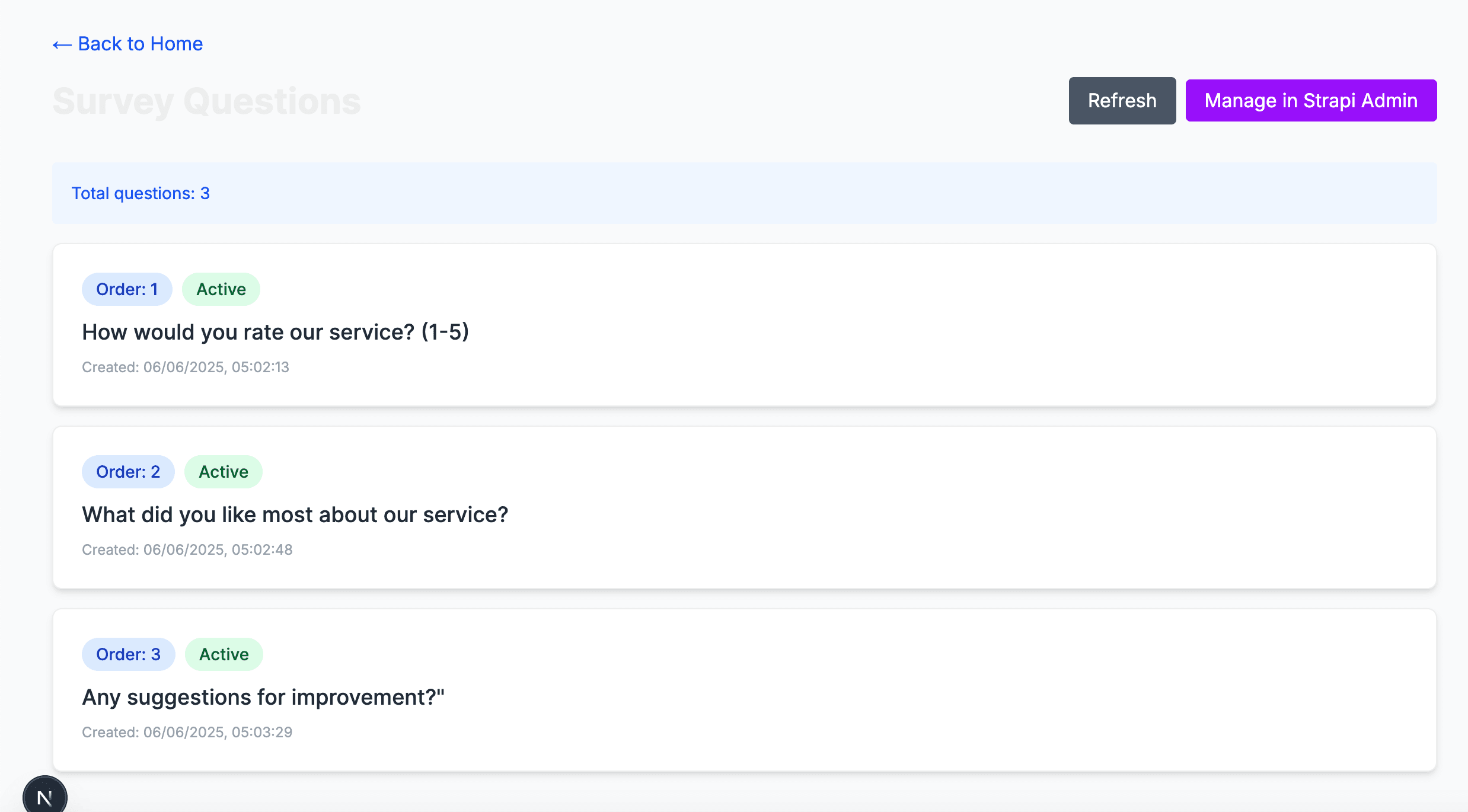
In the code above, we create a component for the questions. When the page loads, it fetches all the survey questions from Strapi and displays them in order. Each question card shows its order, active status, text, and creation date. If no questions are found, it prompts the user to add them via the Strapi admin panel.
Below is an image of what the page will look like:
Create the Home Page with Navigation
Navigate to the src/app/page.js file and update the code to this:
export default function Home() {
  return (
    <div className="container mx-auto px-4 py-8">
      <h1 className="text-4xl font-bold text-center mb-8">
        WhatsApp Survey App
      </h1>

      <div className="max-w-4xl mx-auto">
        <div className="grid md:grid-cols-3 gap-6">
          <div className="bg-white p-6 rounded-lg shadow-md text-center">
            <div className="text-4xl mb-4">📋</div>
            <h3 className="text-xl font-semibold mb-2">Send Survey</h3>
            <p className="text-gray-600 mb-4">
              Start a new WhatsApp survey for a user
            </p>
            <a
              href="/send-survey"
              className="bg-green-600 text-white px-4 py-2 rounded-md hover:bg-green-700"
            >
              Send Survey
            </a>
          </div>

          <div className="bg-white p-6 rounded-lg shadow-md text-center">
            <div className="text-4xl mb-4">📊</div>
            <h3 className="text-xl font-semibold mb-2">View Responses</h3>
            <p className="text-gray-600 mb-4">
              See all survey responses and analytics
            </p>
            <a
              href="/responses"
              className="bg-blue-600 text-white px-4 py-2 rounded-md hover:bg-blue-700"
            >
              View Responses
            </a>
          </div>

          <div className="bg-white p-6 rounded-lg shadow-md text-center">
            <div className="text-4xl mb-4">❓</div>
            <h3 className="text-xl font-semibold mb-2">Manage Questions</h3>
            <p className="text-gray-600 mb-4">
              View and manage survey questions
            </p>
            <a
              href="/questions"
              className="bg-purple-600 text-white px-4 py-2 rounded-md hover:bg-purple-700"
            >
              Manage Questions
            </a>
          </div>
        </div>
      </div>
    </div>
  );
}
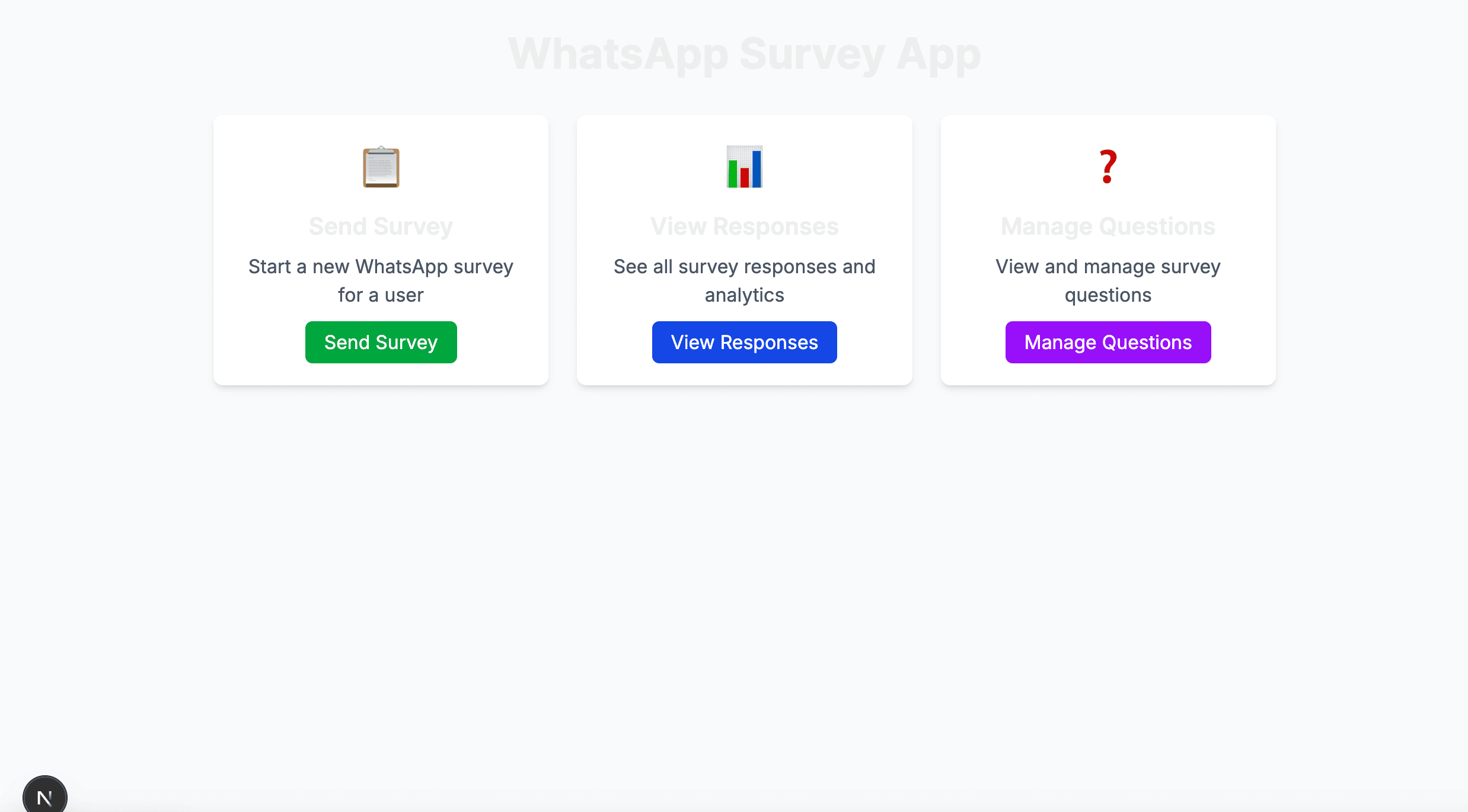
Below is an image of what the home page looks like:
Next, navigate to src/app/globals.css and update the code to this:
@import "tailwindcss";

:root {
  --background: #ffffff;
  --foreground: #171717;
}F

@theme inline {
  --color-background: var(--background);
  --color-foreground: var(--foreground);
  --font-sans: var(--font-geist-sans);
  --font-mono: var(--font-geist-mono);
}

@media (prefers-color-scheme: dark) {
  :root {
    --background: #0a0a0a;
    --foreground: #ededed;
  }
}

body {
  background: var(--background);
  color: var(--foreground);
  font-family: Arial, Helvetica, sans-serif;
}

@tailwind base;
@tailwind components;
@tailwind utilities;

body {
  background-color: #f9fafb;
}

.container {
  max-width: 1200px;
}
Also, update your src/app/layout.js with this:
import { Inter } from "next/font/google";
import "./globals.css";

const inter = Inter({ subsets: ["latin"] });

export const metadata = {
  title: "WhatsApp Survey App",
  description: "Send surveys via WhatsApp and collect responses",
};

export default function RootLayout({ children }) {
  return (
    <html lang="en">
      <body className={inter.className} suppressHydrationWarning={true}>
        {children}
      </body>
    </html>
  );
}
All set now let's test the application!
Test the Application
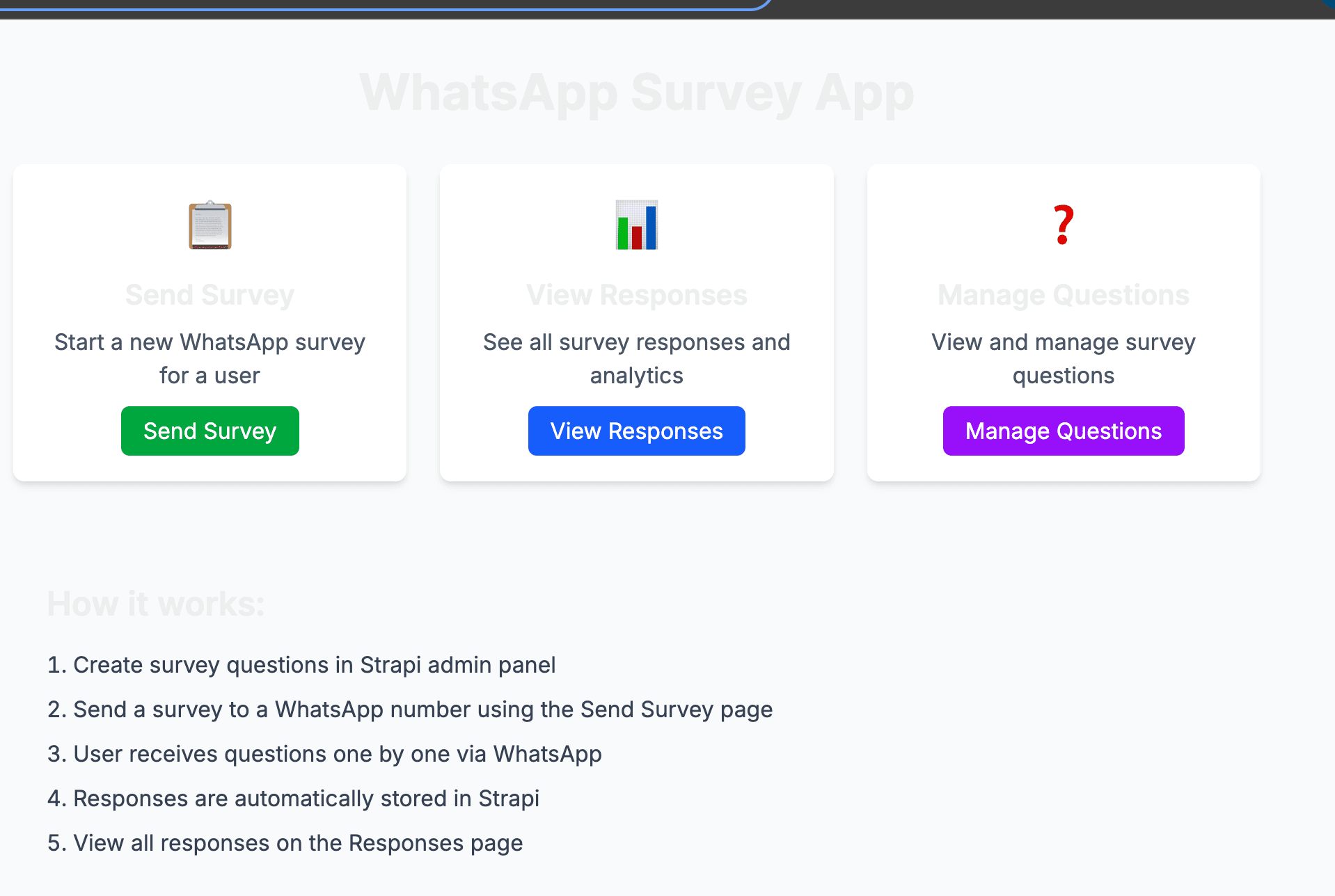
Here are the steps to take when testing your app:
- Create survey questions in the Strapi admin panel
- Send a survey to a WhatsApp number using the Send Survey page.
- The recipient will receive the questions one after another.
- The responses or answers will be automatically stored in Strapi.
- You can then view all responses in the Responses page.
In your terminal run this command to start the terminal:
npm run devNext, navigate to http://localhost:3000 in your browser:
To send a survey, click Send survey and enter a number. Make sure you add the country code.
Once completed, it is added to Strapi's backend, and you can view this on the View Responses page.
Complete GitHub Code
Here's the link to the full project on GitHub.
Conclusion
You now have a fully functional WhatsApp-based survey system built with Next.js, Strapi, and Twilio. The system covers everything from triggering the first survey message to processing replies and walking users through the flow automatically.
You can extend this by adding survey analytics and reporting, conditional logic for branching questions, reusable survey templates, scheduled campaign triggers, or even integrating it directly with your CRM.