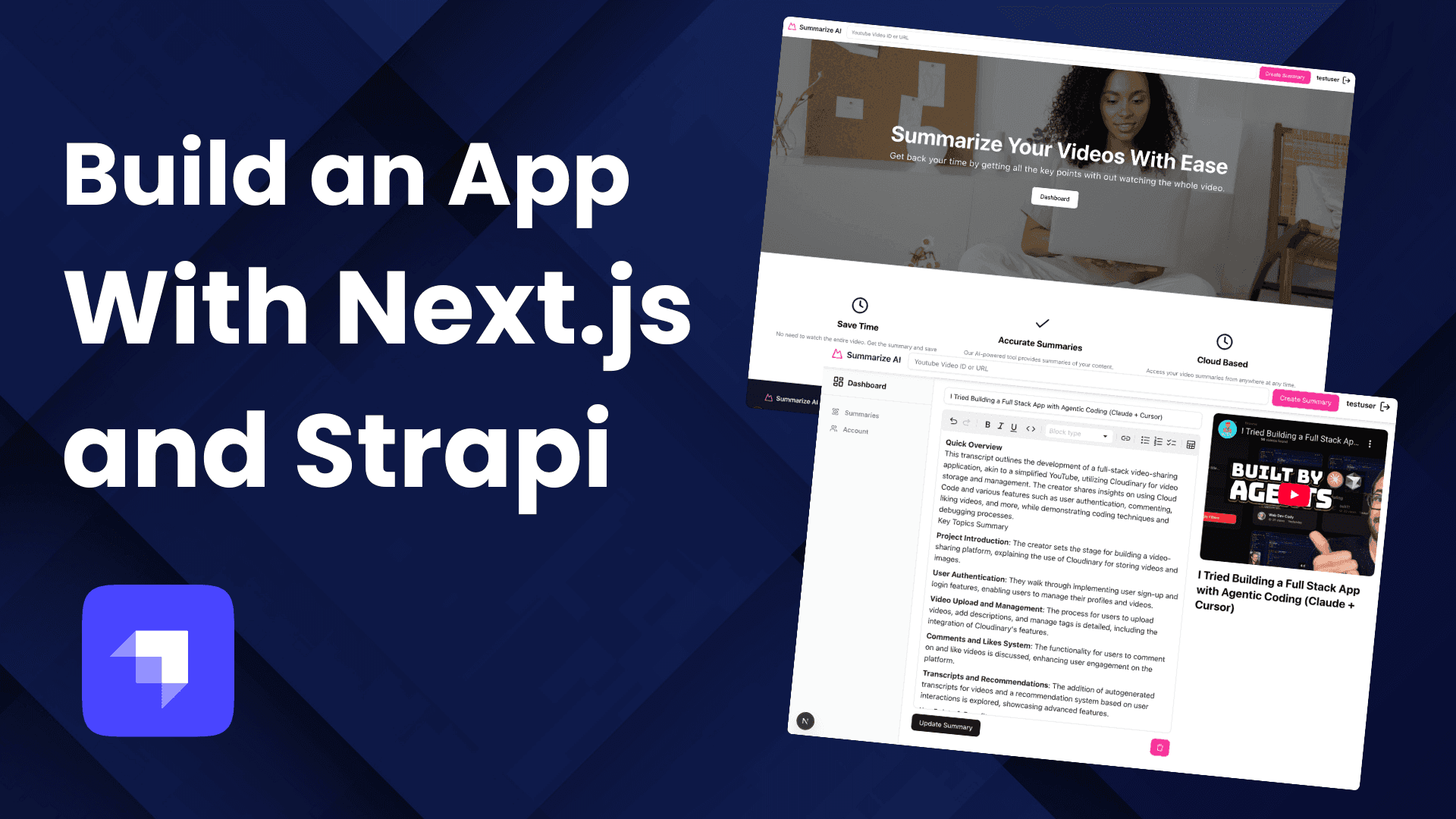

Building a SaaS landing page shouldn't require stitching together a dozen services and hoping they talk to each other. Yet that's exactly where most full-stack developers end up: juggling a frontend framework, a separate Content Management System (CMS), authentication logic, and deployment configs across fragmented toolchains.
This guide walks you through building a production-ready SaaS website using Next.js on the frontend and Strapi as a headless CMS backend. You'll set up dynamic content types for pricing plans, features, testimonials, and blog posts, wire them to a responsive Next.js App Router frontend, add token-based authentication, and deploy the whole thing to Vercel and Railway.
In brief:
- Configure Strapi with Collection Types and Single Types to manage SaaS content like pricing plans, features, testimonials, and blog posts.
- Connect Next.js async Server Components to Strapi's REST API for server-side data fetching with TypeScript safety.
- Add JSON Web Token (JWT) authentication using Strapi's built-in Users & Permissions plugin with HttpOnly cookie storage and middleware-based route protection.
- Deploy the Strapi backend to Railway with PostgreSQL and the Next.js frontend to Vercel with proper environment variable separation.
Prerequisites
Before diving in, make sure your local environment is ready:
- Node.js v18.x, v20.x, or v22.x (required for both Next.js and Strapi)
- npm v6+ or yarn v1.22+
- Git installed and configured
- A code editor (VS Code recommended)
- GitHub, Vercel, and Railway accounts for deployment
You should be comfortable with React component patterns, JavaScript ES6+ syntax, and basic REST API concepts. Familiarity with Tailwind CSS helps but isn't strictly required.
Set Up the Next.js Frontend
Start by scaffolding a new Next.js project with TypeScript, Tailwind CSS, and the App Router enabled. According to the Next.js installation guide, the CLI handles all the initial configuration:
npx create-next-app@latest frontend --typescript --tailwind --appNavigate into the project and install the dependencies you'll need for API communication, authentication, and UI:
cd frontend
npm install next-auth@latest axios react-icons
npm install -D @types/react @types/node
Verify everything works:
npm run devOpen http://localhost:3000 in your browser. You should see the default Next.js welcome page.
Project Structure
Based on the Next.js project structure guidelines, organize your frontend like this:
frontend/
├── app/
│   ├── (auth)/
│   │   ├── login/page.tsx
│   │   └── register/page.tsx
│   ├── (dashboard)/
│   │   └── dashboard/page.tsx
│   ├── blog/[slug]/page.tsx
│   ├── layout.tsx
│   └── page.tsx
├── components/
│   ├── HeroSection.tsx
│   ├── FeaturesGrid.tsx
│   ├── PricingTable.tsx
│   ├── TestimonialSlider.tsx
│   ├── BlogPreview.tsx
│   ├── Navbar.tsx
│   └── Footer.tsx
├── lib/
│   └── api.ts
├── types/
│   └── strapi.ts
└── middleware.ts
Route groups wrapped in parentheses, (auth) and (dashboard), let you apply different layouts to public and authenticated sections without affecting URL structure. This is one of the App Router's more useful organizational features.
Set Up the Strapi Backend and Content Types
Open a separate terminal window and create a new Strapi project:
npx create-strapi-app@latest my-projectThe --quickstart flag configures SQLite for local development only. SQLite should never be used in production. For production deployment, you'll need to configure PostgreSQL through environment variables and ensure it's properly set up before deployment.
Once the installation completes, Strapi opens the Admin Panel at http://localhost:1337/admin. According to Strapi's admin panel setup guide, create your admin account with a secure email and password. This first registered user automatically receives the Super Admin role.
Take a few minutes to explore the interface: the Content-Type Builder for defining data structures, the Content Manager for creating entries, and the Media Library for managing uploads.
Configure Environment Variables
Create a .env.local file in your frontend directory:
# Next.js Frontend Environment Variables
STRAPI_URL=http://localhost:1337
NEXT_PUBLIC_STRAPI_URL=http://localhost:1337
NEXT_PUBLIC_SITE_URL=http://localhost:3000
STRAPI_API_TOKEN=your_strapi_api_token_here
And in your Strapi project root, configure your .env:
# Strapi Backend Environment Variables
NODE_ENV=development
DATABASE_URL=postgresql://user:password@localhost:5432/strapi
APP_KEYS=key1,key2,key3,key4
API_TOKEN_SALT=your-api-token-salt
ADMIN_JWT_SECRET=your-admin-jwt-secret
JWT_SECRET=your-jwt-secret
TRANSFER_TOKEN_SALT=your-transfer-token-salt
Generate an API token in Strapi under Settings → API Tokens → Create new API Token. According to Strapi's API token documentation, choose "Read-only" for now since your frontend only needs to fetch data. Paste the token into STRAPI_API_TOKEN.
Note the distinction: variables prefixed with NEXT_PUBLIC_ are exposed to the browser. Variables without the prefix remain server-side only, keeping your API token safe. The Next.js environment variables guide covers this in detail.
Build the Content Types
This is where you define the data architecture for your SaaS site. Start with the backend before touching the frontend; it gives you clear API contracts to work against.
Collection Types
Open the Content-Type Builder and create these Collection Types:
Feature
| Field Name | Type | Required |
|---|---|---|
| title | Short Text | Yes |
| description | Rich Text | Yes |
| icon | Media | Yes |
| order | Number | Yes |
PricingPlan
| Field Name | Type | Required |
|---|---|---|
| planName | Text (Short) | Yes |
| price | Decimal | Yes |
| currency | Enumeration (USD, EUR, GBP) | Yes |
| billingCycle | Enumeration (monthly, yearly) | Yes |
| description | Rich Text | No |
| features | Component (repeatable: PlanFeature) | Yes |
| isPopular | Boolean | No |
| ctaButton | Component (CTAButton) | Yes |
| trialDays | Number | No |
For the features field, create a reusable component called PlanFeature with a name (Text) and included (Boolean) field.
According to Strapi's content modeling best practices, components work well here because pricing features are tightly coupled to their parent plan and don't need independent API endpoints. Unlike relations which should be used when data exists as independent entities or multiple content types reference the same data, components are ideal for data that is tightly coupled to the parent and managed inline by content editors.
Testimonial
| Field Name | Type | Required |
|---|---|---|
| authorName | Short Text | Yes |
| authorRole | Short Text | Yes |
| authorImage | Media | No |
| quote | Long Text | Yes |
| rating | Number | Yes |
BlogPost
According to Strapi's Content-Type Builder Documentation, a BlogPost collection type for SaaS websites should include the following configured fields:
| Field Name | Type | Required |
|---|---|---|
| title | Text (short) | Yes |
| slug | UID (linked to title) | Yes |
| content | Rich Text | Yes |
| excerpt | Text (long) | Yes |
| featuredImage | Media (single image) | Yes |
| publishedAt | DateTime | Yes |
| author | Relation (many-to-one → User) | Yes |
| category | Relation (many-to-one) | No |
This structure aligns with Strapi's content modeling best practices, where required fields (title, slug, content, excerpt, featuredImage, publishedAt, author) ensure functional blog posts, while optional relations like category provide flexible content organization without enforcement.
The UID field creates unique, URL-friendly slugs that serve as alternative identifiers for your content, which you'll use for dynamic blog routes and API endpoints.
Single Type
Create a HeroSection Single Type:
| Field Name | Type | Required |
|---|---|---|
| heading | Short Text | Yes |
| subheading | Long Text | Yes |
| ctaPrimary | Short Text | Yes |
| ctaSecondary | Short Text | No |
| heroImage | Media | Yes |
Single Types generate single-entry endpoints (/api/hero-section) rather than list endpoints, which is exactly right for unique page content.
Populate Sample Data
Using the Content Manager, add at least four features, three pricing plans (Free, Pro, Enterprise), three testimonials, two blog posts, and one Hero Section entry. Having real data in Strapi makes frontend development dramatically faster because you can see actual API responses instead of guessing at data shapes.
Configure API Permissions
Navigate to Settings → Users & Permissions plugin → Roles → Public. For each collection type (such as Features, PricingPlans, Testimonials, and BlogPosts), enable the find and findOne permissions to allow unauthenticated users to retrieve lists and individual entries. For single types (such as HeroSection), enable the find permission to allow public access to retrieve the single-entry content. According to Strapi's Users & Permissions documentation, these granular permission configurations control which API endpoints are accessible without authentication.
A common mistake, and one most teams learn the hard way, is forgetting this step entirely. If your frontend returns 403 errors, check permissions first. By default, all API endpoints are protected and require authentication. Developers must explicitly enable public access through the Users & Permissions plugin configuration.
For the Authenticated role in Strapi's Users & Permissions configuration, enable full Create, Read, Update, Delete (CRUD) access (find, findOne, create, update, delete operations) for logged-in users so they can interact with content through API endpoints consumed by the dashboard.
Connect the Frontend to Strapi
Create API Utility Functions
In frontend/lib/api.ts, build a type-safe fetch wrapper:
const baseUrl = process.env.STRAPI_URL || 'http://localhost:1337';

export async function fetchAPI<T>(path: string, options: RequestInit = {}): Promise<T> {
  const url = new URL(`/api${path}`, baseUrl);

  const response = await fetch(url, {
    headers: {
      'Content-Type': 'application/json',
      Authorization: `Bearer ${process.env.STRAPI_API_TOKEN}`,
      ...options.headers,
    },
    ...options,
  });

  if (!response.ok) {
    throw new Error(`API error: ${response.status} ${response.statusText}`);
  }

  return response.json();
}

export async function getHeroSection() {
  return fetchAPI('/hero-section?populate=*');
}

export async function getFeatures() {
  return fetchAPI('/features?populate=*&sort=order:asc');
}

export async function getPricingPlans() {
  return fetchAPI('/pricing-plans?populate=*');
}

export async function getTestimonials() {
  return fetchAPI('/testimonials?populate=*');
}

export async function getBlogPosts() {
  return fetchAPI('/blog-posts?populate=*&sort=publishedDate:desc');
}

export async function getBlogPostBySlug(slug: string) {
  return fetchAPI(`/blog-posts?filters[slug][$eq]=${slug}&populate=*`);
}
This function integrates with Strapi's REST API filtering system. The filters[slug][$eq] operator performs exact matching on the slug field, while populate=* retrieves all related fields and relations as specified in the Strapi populate documentation.
The populate=* parameter tells Strapi to include all first-level relations and media fields. According to the Strapi populate documentation, deeper population of nested structures requires more granular configuration using array syntax like populate[author][populate][0]=avatar for multi-level relations. For filtering, the Strapi filters documentation specifies operators including $eq, $ne, $lt, $lte, $gt, $gte, $in, $contains, and $containsi (case-insensitive).
These query parameters work together to create precise API requests. For example, filters[status][$eq]=published returns only published content, while sort=publishedAt:desc orders results by publication date in descending order.
Define TypeScript Interfaces
In frontend/types/strapi.ts, define the response shapes based on Strapi's REST API documentation:
export interface StrapiResponse<T> {
  data: T;
  meta: {
    pagination?: {
      page: number;
      pageSize: number;
      pageCount: number;
      total: number;
    };
  };
}

export interface Feature {
  id: number;
  title: string;
  description: string;
  icon?: { url: string; alternativeText: string };
  order: number;
}

export interface PricingPlan {
  id: number;
  planName: string;
  price: number;
  billingCycle: 'monthly' | 'yearly';
  features: { name: string; included: boolean }[];
  isPopular: boolean;
  ctaText: string;
  ctaLink: string;
}

export interface Testimonial {
  id: number;
  authorName: string;
  authorRole: string;
  authorImage?: { url: string; alternativeText: string };
  quote: string;
  rating: number;
}

export interface BlogPost {
  id: number;
  title: string;
  slug: string;
  content: string;
  excerpt: string;
  featuredImage: { url: string; alternativeText: string };
  publishedAt: string;
  author?: { id: number; username: string; email: string };
}
Defining these interfaces catches data mismatches at compile time rather than in production. It's one of those things that feels like extra work until it saves you from a 2 AM debugging session.
Build the Landing Page
In frontend/app/page.tsx, fetch all data server-side using async Server Components. This approach, recommended by the Next.js data fetching patterns guide, eliminates client-side state management for initial data loading:
import {
  getHeroSection,
  getFeatures,
  getPricingPlans,
  getTestimonials,
  getBlogPosts,
} from '@/lib/api';
import type { StrapiResponse } from '@/types/strapi';
import HeroSection from '@/components/HeroSection';
import FeaturesGrid from '@/components/FeaturesGrid';
import PricingTable from '@/components/PricingTable';
import TestimonialSlider from '@/components/TestimonialSlider';
import BlogPreview from '@/components/BlogPreview';

interface PageData {
  hero: any;
  features: any[];
  pricing: any[];
  testimonials: any[];
  blogPosts: any[];
}

async function getPageData(): Promise<PageData> {
  try {
    const [heroRes, featuresRes, pricingRes, testimonialsRes, blogsRes] =
      await Promise.all([
        getHeroSection(),
        getFeatures(),
        getPricingPlans(),
        getTestimonials(),
        getBlogPosts(),
      ]);

    return {
      hero: heroRes.data,
      features: featuresRes.data || [],
      pricing: pricingRes.data || [],
      testimonials: testimonialsRes.data || [],
      blogPosts: blogsRes.data || [],
    };
  } catch (error) {
    console.error('Failed to fetch page data:', error);
    return {
      hero: null,
      features: [],
      pricing: [],
      testimonials: [],
      blogPosts: [],
    };
  }
}

export default async function HomePage() {
  const pageData = await getPageData();

  return (
    <main>
      {pageData.hero && <HeroSection data={pageData.hero} />}
      <FeaturesGrid data={pageData.features} />
      <PricingTable data={pageData.pricing} />
      <TestimonialSlider data={pageData.testimonials} />
      <BlogPreview data={pageData.blogPosts} />
    </main>
  );
}
Using Promise.all fires all five API requests concurrently rather than sequentially. On a page with this many data sources, that difference is noticeable.
Build Responsive Components
Each component pulls data from Strapi and renders it with Tailwind CSS. Here's PricingTable.tsx as a representative example:
import type { PricingPlan } from '@/types/strapi';

export default function PricingTable({ data }: { data: PricingPlan[] }) {
  return (
    <section className="py-20 px-4">
      <h2 className="text-3xl font-bold text-center mb-12">Pricing Plans</h2>
      <div className="grid grid-cols-1 md:grid-cols-3 gap-8 max-w-6xl mx-auto">
        {data.map((plan) => (
          <div
            key={plan.id}
            className={`rounded-2xl p-8 border ${
              plan.isPopular
                ? 'border-blue-500 shadow-lg scale-105'
                : 'border-gray-200'
            } hover:shadow-xl transition-shadow duration-300`}
          >
            {plan.isPopular && (
              <span className="bg-blue-500 text-white text-sm px-3 py-1 rounded-full">
                Most Popular
              </span>
            )}
            <h3 className="text-xl font-semibold mt-4">{plan.planName}</h3>
            <p className="text-4xl font-bold mt-2">
              ${plan.price}
              <span className="text-base font-normal text-gray-500">
                /{plan.billingCycle}
              </span>
            </p>
            <ul className="mt-6 space-y-3">
              {plan.features.map((feature, i) => (
                <li key={i} className="flex items-center gap-2">
                  <span className={feature.included ? 'text-green-500' : 'text-gray-300'}>
                    {feature.included ? '✓' : '✗'}
                  </span>
                  {feature.name}
                </li>
              ))}
            </ul>
            <a
              href={plan.ctaLink}
              className="mt-8 block text-center bg-blue-600 text-white py-3 rounded-lg hover:bg-blue-700 transition-colors duration-300"
            >
              {plan.ctaText}
            </a>
          </div>
        ))}
      </div>
    </section>
  );
}
And here's a HeroSection.tsx component to render your Single Type content:
import Image from 'next/image';

interface HeroData {
  heading: string;
  subheading: string;
  ctaPrimary: string;
  ctaSecondary?: string;
  heroImage: { url: string; alternativeText: string };
}

export default function HeroSection({ data }: { data: HeroData }) {
  return (
    <section className="flex flex-col md:flex-row items-center gap-12 px-4 py-24 max-w-6xl mx-auto">
      <div className="flex-1 text-center md:text-left">
        <h1 className="text-5xl font-bold tracking-tight">{data.heading}</h1>
        <p className="mt-6 text-lg text-gray-600">{data.subheading}</p>
        <div className="mt-8 flex gap-4 justify-center md:justify-start">
          <a href="#pricing" className="bg-blue-600 text-white px-6 py-3 rounded-lg hover:bg-blue-700 transition-colors">
            {data.ctaPrimary}
          </a>
          {data.ctaSecondary && (
            <a href="#features" className="border border-gray-300 px-6 py-3 rounded-lg hover:bg-gray-50 transition-colors">
              {data.ctaSecondary}
            </a>
          )}
        </div>
      </div>
      <div className="flex-1">
        <Image
          src={`${process.env.NEXT_PUBLIC_STRAPI_URL}${data.heroImage.url}`}
          alt={data.heroImage.alternativeText || data.heading}
          width={600}
          height={400}
          priority
          className="rounded-xl w-full h-auto"
        />
      </div>
    </section>
  );
}
Here's the FeaturesGrid.tsx component for displaying feature cards in a responsive grid:
import Image from 'next/image';
import type { Feature } from '@/types/strapi';

export default function FeaturesGrid({ data }: { data: Feature[] }) {
  return (
    <section id="features" className="py-20 px-4 bg-gray-50">
      <h2 className="text-3xl font-bold text-center mb-4">Everything You Need</h2>
      <p className="text-center text-gray-600 mb-12 max-w-2xl mx-auto">
        Built for teams that want to move fast without compromising quality.
      </p>
      <div className="grid grid-cols-1 sm:grid-cols-2 lg:grid-cols-4 gap-8 max-w-6xl mx-auto">
        {data.map((feature) => (
          <div
            key={feature.id}
            className="bg-white rounded-xl p-6 shadow-sm hover:shadow-md transition-shadow duration-300"
          >
            {feature.icon && (
              <Image
                src={`${process.env.NEXT_PUBLIC_STRAPI_URL}${feature.icon.url}`}
                alt={feature.icon.alternativeText || feature.title}
                width={48}
                height={48}
                className="mb-4"
              />
            )}
            <h3 className="font-semibold text-lg mb-2">{feature.title}</h3>
            <p className="text-gray-600 text-sm">{feature.description}</p>
          </div>
        ))}
      </div>
    </section>
  );
}
The remaining components — TestimonialSlider, BlogPreview, Navbar, and Footer — follow the same pattern: accept typed props, render with Tailwind utility classes, and use responsive grid or flex layouts. The TestimonialSlider needs 'use client' since it manages carousel state with useState.
For the Navbar, use Tailwind's hidden md:flex pattern combined with a state-driven mobile menu. The Headless UI menu component handles accessible dropdown behavior with built-in keyboard navigation and focus management, eliminating the need for custom accessibility logic.
Create Dynamic Blog Routes
Add frontend/app/blog/[slug]/page.tsx for individual blog posts. The page component fetches data server-side, then renders the article content:
import { getBlogPostBySlug } from '@/lib/api';
import { notFound } from 'next/navigation';
import Image from 'next/image';

interface PageProps {
  params: { slug: string };
}

export default async function BlogPostPage({ params }: PageProps) {
  const { data } = await getBlogPostBySlug(params.slug);

  if (!data || data.length === 0) {
    notFound();
  }

  const post = data[0];

  return (
    <article className="max-w-3xl mx-auto py-16 px-4">
      <Image
        src={`${process.env.NEXT_PUBLIC_STRAPI_URL}${post.featuredImage.url}`}
        alt={post.featuredImage.alternativeText || post.title}
        width={800}
        height={400}
        priority
        className="rounded-xl w-full object-cover h-auto"
        sizes="(max-width: 768px) 100vw, (max-width: 1200px) 50vw, 33vw"
      />
      <h1 className="text-4xl font-bold mt-8">{post.title}</h1>
      <p className="text-gray-500 mt-2">
        {new Date(post.publishedAt).toLocaleDateString()}
      </p>
      <div
        className="prose prose-lg mt-8"
        dangerouslySetInnerHTML={{ __html: post.content }}
      />
    </article>
  );
}
If your Strapi content includes user-submitted HTML, sanitize it with a library like dompurify before rendering. For content created exclusively by trusted editors through the Strapi Admin Panel, the risk is minimal.
The prose class comes from the Tailwind Typography plugin (@tailwindcss/typography), which automatically styles raw HTML content with readable typography defaults. Install it with npm install @tailwindcss/typography and add it to your Tailwind config's plugins array.
Configure next.config.js to allow images from your Strapi domain. The Next.js Image Optimization documentation recommends remotePatterns over the deprecated domains configuration:
/** @type {import('next').NextConfig} */
const nextConfig = {
  images: {
    remotePatterns: [
      {
        protocol: process.env.NODE_ENV === 'production' ? 'https' : 'http',
        hostname: process.env.NODE_ENV === 'production'
          ? new URL(process.env.NEXT_PUBLIC_STRAPI_URL).hostname
          : 'localhost',
        port: process.env.NODE_ENV === 'production' ? '' : '1337',
        pathname: '/uploads/**',
      },
    ],
  },
};

module.exports = nextConfig;
Style and Add Responsiveness
With your components fetching data from Strapi and rendering correctly, it's time to refine the visual layer. Start by customizing your Tailwind configuration with brand-specific design tokens.
In tailwind.config.js, extend the default theme with your SaaS brand colors and font stack:
// tailwind.config.js
module.exports = {
  content: [
    './app/**/*.{js,ts,jsx,tsx,mdx}',
    './components/**/*.{js,ts,jsx,tsx,mdx}',
  ],
  theme: {
    extend: {
      colors: {
        brand: { 50: '#eff6ff', 500: '#3b82f6', 600: '#2563eb', 700: '#1d4ed8' },
      },
      fontFamily: {
        sans: ['Inter', 'system-ui', 'sans-serif'],
      },
    },
  },
  plugins: [require('@tailwindcss/typography')],
};
This gives you access to utility classes like bg-brand-600 and text-brand-700 throughout your components, keeping color usage consistent without hardcoding hex values.
Test your layouts across four key breakpoints: 320px (small mobile), 768px (tablet), 1024px (laptop), and 1440px (desktop). Browser DevTools device emulation mode is the fastest way to cycle through these. Pay particular attention to the pricing grid and features grid, which shift from single-column stacks on mobile to multi-column layouts at the md: and lg: breakpoints.
Add Micro-Interactions
Loading states matter for perceived performance, especially when fetching data from Strapi. Build a skeleton component using Tailwind's animate-pulse utility to show placeholder content while data loads:
function PricingSkeleton() {
  return (
    <div className="animate-pulse rounded-2xl p-8 border border-gray-200">
      <div className="h-6 bg-gray-200 rounded w-1/3 mb-4" />
      <div className="h-10 bg-gray-200 rounded w-1/2 mb-6" />
      <div className="space-y-3">
        {[...Array(4)].map((_, i) => (
          <div key={i} className="h-4 bg-gray-200 rounded w-full" />
        ))}
      </div>
    </div>
  );
}
For smooth anchor navigation between sections (like the hero's CTA scrolling down to #pricing), add the scroll-smooth class to the <html> element in your root layout, or include scroll-behavior: smooth in your global CSS file.
The hover transitions already present in your components — transition-shadow duration-300 on the pricing cards, transition-colors duration-300 on CTA buttons — provide tactile feedback without JavaScript overhead. Stick to specific transition properties rather than transition-all to maintain 60fps performance across devices.
Add Authentication
Strapi's Users & Permissions plugin provides JWT authentication through dedicated endpoints (POST /api/auth/local/register and POST /api/auth/local). This requires server actions for registration and login with HttpOnly cookie-based token storage, middleware for route protection, and proper JWT configuration in config/plugins.js with settings for token expiration and secret management.
Auth Server Actions
Create frontend/lib/auth.ts:
'use server';

import { cookies } from 'next/headers';
import { redirect } from 'next/navigation';

const STRAPI_URL = process.env.STRAPI_URL;

export async function registerUser(formData: FormData) {
  const res = await fetch(`${STRAPI_URL}/api/auth/local/register`, {
    method: 'POST',
    headers: { 'Content-Type': 'application/json' },
    body: JSON.stringify({
      username: formData.get('username'),
      email: formData.get('email'),
      password: formData.get('password'),
    }),
  });

  if (!res.ok) {
    const error = await res.json();
    return { success: false, error: error.error?.message || 'Registration failed' };
  }

  const data = await res.json();

  cookies().set('auth_token', data.jwt, {
    httpOnly: true,
    secure: process.env.NODE_ENV === 'production',
    sameSite: 'lax',
    maxAge: 60 * 60 * 24 * 7,
    path: '/',
  });

  redirect('/dashboard');
}

export async function loginUser(formData: FormData) {
  const res = await fetch(`${STRAPI_URL}/api/auth/local`, {
    method: 'POST',
    headers: { 'Content-Type': 'application/json' },
    body: JSON.stringify({
      identifier: formData.get('email'),
      password: formData.get('password'),
    }),
  });

  if (!res.ok) {
    const error = await res.json();
    return { success: false, error: error.error?.message || 'Invalid credentials' };
  }

  const data = await res.json();

  cookies().set('auth_token', data.jwt, {
    httpOnly: true,
    secure: process.env.NODE_ENV === 'production',
    sameSite: 'lax',
    maxAge: 60 * 60 * 24 * 7,
    path: '/',
  });

  redirect('/dashboard');
}

export async function logoutUser() {
  cookies().delete('auth_token');
  redirect('/login');
}

export async function getAuthenticatedUser() {
  const token = cookies().get('auth_token')?.value;
  if (!token) return null;

  const res = await fetch(`${STRAPI_URL}/api/users/me`, {
    headers: { Authorization: `Bearer ${token}` },
    cache: 'no-store',
  });

  if (!res.ok) return null;
  return res.json();
}
Storing JWTs in HttpOnly cookies prevents JavaScript access, protecting against XSS attacks. The sameSite: 'lax' setting adds CSRF protection by preventing cookies from being sent with cross-site requests. Never store JWTs in localStorage.
The OWASP CSRF Prevention Cheat Sheet explains why this matters: localStorage is accessible to any JavaScript running on the page, making tokens vulnerable to XSS attacks and other client-side exploits. Instead, use HttpOnly cookies with both secure: true (HTTPS only in production) and sameSite: 'lax' to create defense in depth through multiple security layers.
Route Protection Middleware
Create frontend/middleware.ts to intercept requests before they reach protected pages:
import { NextResponse } from 'next/server';
import type { NextRequest } from 'next/server';

export function middleware(request: NextRequest) {
  const token = request.cookies.get('auth_token');

  if (request.nextUrl.pathname.startsWith('/dashboard') && !token) {
    return NextResponse.redirect(new URL('/login', request.url));
  }

  return NextResponse.next();
}

export const config = {
  matcher: ['/dashboard/:path*'],
};
The Next.js middleware documentation confirms this runs at the edge before any page rendering occurs, enabling authentication checks before route rendering to protect content from unauthenticated users.
Deploy to Production
Deploy Strapi to Railway
Railway provides streamlined Strapi hosting with managed PostgreSQL. According to Railway's Strapi deployment documentation, the process is mostly automated:
- Push your Strapi project to GitHub.
- Connect the repository in Railway's dashboard.
- Add a PostgreSQL database from Railway's service catalog. It auto-generates
DATABASE_URLin your environment variables. - Install the PostgreSQL driver in your Strapi project:
npm install pg - Update
config/database.jsto use environment variables for PostgreSQL configuration:
module.exports = ({ env }) => ({
  connection: {
    client: 'postgres',
    connection: {
      connectionString: env('DATABASE_URL'),
      ssl: {
        rejectUnauthorized: env.bool('DATABASE_SSL_SELF', false)
      }
    }
  }
});- Add the required environment variables in Railway's dashboard. According to Strapi's environment configuration documentation, configure the following for production:
NODE_ENV=production
APP_KEYS=key1,key2,key3,key4
ADMIN_JWT_SECRET=your-admin-secret
JWT_SECRET=your-jwt-secret
API_TOKEN_SALT=your-api-salt
TRANSFER_TOKEN_SALT=your-transfer-token-salt
HOST=0.0.0.0
PORT=1337
Generate unique secrets per environment using openssl rand -base64 32. Never commit .env files to version control, and rotate secrets regularly according to your security policy.
One critical detail: Railway and Render use ephemeral filesystems. Any files uploaded through Strapi's Media Library are lost on restart if stored locally. For production, configure an external storage provider like AWS S3 using the AWS S3 upload provider plugin.
Deploy Next.js to Vercel
According to Vercel's Next.js deployment documentation, Vercel provides zero-configuration Next.js hosting with automatic preview environments:
- Push your Next.js project to GitHub.
- Import the repository in Vercel's dashboard.
- Add environment variables under Settings → Environment Variables:
STRAPI_URL=https://your-strapi-app.railway.app
NEXT_PUBLIC_STRAPI_URL=https://your-strapi-app.railway.app
STRAPI_API_TOKEN=your_production_token- Update
next.config.jsto include your production Strapi domain inremotePatterns. - Deploy. Vercel builds and deploys automatically on every push to
main.
Post-Deployment Verification
Run through this checklist before calling it production-ready:
- All API endpoints return data (test in browser at
https://your-strapi-app.railway.app/api/features) - Images load from the Strapi Media Library (or S3 in production)
- Registration, login, and logout work end-to-end
- Blog posts render dynamically with correct slugs
- The site is responsive across 320px, 768px, 1024px, and 1440px breakpoints
- No console errors in production
- Lighthouse performance score is above 80
If images fail to load, double-check your remotePatterns configuration in next.config.js to ensure it matches your Strapi domain exactly. If API calls return 403 errors, verify your Strapi Users & Permissions configuration by navigating to Settings → Users & Permissions → Roles and ensuring the appropriate permissions (find, findOne, create, update, delete) are enabled for each content type.
CORS configuration errors are also common when integrating Next.js with Strapi. Configure CORS in your Strapi middleware to include your Next.js frontend URL.
Performance Optimization
A few optimizations that make a real difference for SaaS landing pages:
- Prioritize above-the-fold images. Add the
priorityprop to your hero image<Image>component. According to the Next.js Image documentation, this prevents lazy loading for above-the-fold images, which is critical for reducing Largest Contentful Paint (LCP). As noted in web.dev's image performance guide, properly optimized images can reduce LCP by 50% or more since images are often the largest contentful element. - Select specific fields from Strapi. Instead of
populate=*everywhere, request only the fields you need. The Strapi parameters documentation shows how field selection reduces API response sizes. - Keep interactive components client-side only. Server Components send zero JavaScript to the client by default. Reserve
'use client'for components that genuinely need interactivity, like the testimonial carousel or mobile navigation toggle.
Next Steps
You now have a full-stack SaaS website with dynamic content management, JWT authentication, and production deployment. To keep improving your stack, consider:
- Configuring Strapi's Users & Permissions API roles for multi-tier SaaS user access control
- Setting up on-demand revalidation with Next.js ISR so content updates appear instantly when editors publish changes in Strapi
- Optimizing API response payloads using Strapi's populate parameters and field selection to reduce data transfer
- Setting up multi-layer caching with HTTP cache-control headers on Strapi endpoints combined with Next.js ISR for content freshness
- Adding a CDN layer like Cloudflare in front of your Strapi API for geographic edge caching
The architecture you've built here (Strapi for content, Next.js for rendering, separate deployment infrastructure) scales naturally. Content editors work in Strapi's admin panel without touching code, while you maintain full control over the frontend experience and deployment pipeline.