
Headless CMS platforms decouple content forms from visual output, forcing you to edit abstract fields without seeing how changes affect the actual page. When you can't see your changes in context, you lose autonomy. Developers become bottlenecks for routine updates, causing delays for simple fixes.
You can close this gap in Strapi through native features and integrations. The Content-Type Builder, Dynamic Zones, and Live Preview capabilities provide visual feedback without sacrificing the frontend-agnostic architecture developers need.
This guide walks through five ways to add visual editing to Strapi. You'll see how to solve specific editing problems (field mapping, previews) with working configurations.
In brief
- Dynamic Zones and Components map content fields to actual page sections, eliminating guesswork about which input controls which page element.
- Live Preview (Growth/Enterprise plans) renders changes in real-time within the admin panel, while Static Preview (all plans) opens your frontend in a new tab.
- Block editors like CKEditor and the native Rich Text (Blocks) field provide WYSIWYG formatting that mirrors your published design.
- Third-party integrations add visual page composition, though native Dynamic Zones handle most flexibility needs without additional tools.
1. Clear Mapping Between Fields and Page Sections
Long content forms filled with abstract field names create a guessing game. When a form lists hero_headline, hero_subheadline, hero_cta_primary, and twenty more fields across sections, you lose track of which input controls which page element, leading to constant trial-and-error cycles.
This occurs because developers often build content types as flat lists of fields rather than structured component hierarchies that mirror page architecture. Looking at sixty fields in a single form gives you no visual cues about page structure.
Modeling Sections with Components and Dynamic Zones
When you use Components to structure content, section names match your actual page: Hero Section, Feature Grid, Testimonial. No more guessing which field goes where. You can expand only the section you want to edit, make changes, and immediately understand which page area you're affecting.
The Content-Type Builder in Strapi 5 provides a visual interface for creating Components (reusable content structures that map to real page sections). You can create a Component for each distinct section type (Hero, FeatureGrid, Testimonial, CTABar), then add them to a Dynamic Zone field on your Page content type.
In the Content-Type Builder, create a new Collection Type called Page, then add a Dynamic Zone field named page_sections. When configuring the Dynamic Zone, select which Components can appear in it. This ensures you use only approved section types while allowing flexibility to add, remove, and reorder sections.
For Component creation, navigate to the Content-Type Builder in the Strapi admin panel and click "Create new component". Choose a category like sections. Name it HeroSection and add fields that match your design system: headline (Text), subheadline (Text), primaryCTA (Component with label and url fields), and backgroundImage (Media). Repeat this process for each component type your pages use.
The key is naming: use labels that match what you see on the actual website. Instead of field_1 and field_2, use headline and subheadline. Developers can add help text in the Advanced Settings explaining where each Component appears. For example: "Hero section: full-width banner at top of page."
The resulting schema looks like this:
{
  "attributes": {
    "page_sections": {
      "type": "dynamiczone",
      "components": ["sections.hero-section", "sections.feature-grid"]
    }
  }
}
This approach transforms a sixty-field form into a structured list of labeled sections. You see "Hero Section," "Feature Grid," and "Testimonial" (names that match the page design) rather than abstract field names.
2. Real-Time, In-Context Visual Feedback
Editing content in one interface and previewing it in another creates constant tab-switching. You make a change, click preview, wait for the page to load in a new tab, scroll to find your edit, notice a layout issue, switch back to the admin panel, make another change, and repeat. Layout problems and text truncation often surface only after publishing.
This workflow breaks content flow and introduces lag between editing and validation. You can't confidently assess your changes in actual page layouts until you've completed multiple preview loops, moving between the admin panel and preview interface repeatedly.
Setting Up Live Preview for Real-Time Feedback
With Live Preview, you type a headline and watch it appear in the design instantly. No tab-switching. No waiting. You can catch truncation and layout issues while you're still editing, not after you publish.
Strapi 5 Preview comes in two tiers: Static Preview (available to all users, including Community Edition) and Live Preview (requires Growth or Enterprise plans). Static Preview opens your frontend in a new browser tab when you click the Preview button. Live Preview renders content in an iframe next to the editing form with real-time updates as you type.
For Static Preview configuration, add preview settings to config/admin.ts:
// config/admin.ts
import type { Strapi } from '@strapi/strapi';

export default ({ env }: { env: (key: string) => string }) => ({
  preview: {
    enabled: true,
    config: {
      allowedOrigins: [env('FRONTEND_URL')],
      handler: (uid: string, { documentId, locale, status }: { documentId: string; locale?: string; status: 'draft' | 'published' }) => {
        // Note: status parameter replaces publicationState from Strapi 4
        return `${env('FRONTEND_URL')}/api/preview?documentId=${documentId}&status=${status}`;
      }
    }
  }
});
The handler function receives four parameters: uid (content type identifier), documentId (unique document identifier), locale (for internationalized content), and status (either draft or published).
Your frontend needs a preview route that fetches draft content. For Next.js, this typically means implementing draft mode and creating an /api/preview route that validates the request, enables draft mode, and redirects to the content page.
Live Preview (Growth/Enterprise only) takes this further by embedding your frontend in an iframe within the Strapi admin panel. As you type in fields, the preview updates in real-time without requiring page refreshes.
3. Direct Click-to-Edit from the Frontend
When you spot a typo in the hero headline on the homepage, you need a fast path back to the edit form. Small fixes that should take thirty seconds become five-minute hunts through the admin panel as you try to remember: Is that in the "Homepage" entry? Or "Landing Pages"? Which field was that, hero_title or main_headline?
Building Custom Edit Links in Your Frontend
You can build frontend edit links that connect directly to Strapi admin panel entries. Add metadata to your frontend components using data attributes that carry the information needed to construct links back to specific entries. When authenticated CMS users visit your site, they see edit buttons overlaid on each component that open the corresponding Strapi entry directly in the admin panel.
For a Next.js implementation, create a component wrapper that adds edit functionality:
// components/EditableSection.tsx
import { useSession } from 'next-auth/react';

interface EditableSectionProps {
  contentType: string;
  documentId: string;
  children: React.ReactNode;
}

export function EditableSection({ contentType, documentId, children }: EditableSectionProps) {
  const { data: session } = useSession();
  const isEditor = session?.user?.role === 'editor' || session?.user?.role === 'admin';

  if (!isEditor) return <>{children}</>;

  const editUrl = `${process.env.NEXT_PUBLIC_STRAPI_URL}/admin/content-manager/collection-types/${contentType}/${documentId}`;

  return (
    <div className="relative group">
      {children}
      <a
        href={editUrl}
        target="_blank"
        rel="noopener noreferrer"
        className="absolute top-2 right-2 opacity-0 group-hover:opacity-100 bg-blue-600 text-white px-3 py-1 rounded text-sm"
      >
        Edit
      </a>
    </div>
  );
}
Wrap your page sections with this component:
<EditableSection contentType="api::page.page" documentId={page.documentId}>
  <HeroSection data={page.heroSection} />
</EditableSection>
Use middleware or authentication checks to show edit buttons only to logged-in CMS users. This prevents exposing admin functionality to public visitors while giving content teams quick access. This approach eliminates the search process entirely without requiring third-party integrations.
For authentication, implement session checking that verifies the user has valid Strapi credentials. You can use Strapi's built-in authentication API to validate tokens and check user roles before displaying edit controls.
4. Flexible, Guardrailed Page Composition
When developers hard-code layout in templates, every change requires developer work. You can't add a testimonial section to a landing page, reorder sections for A/B testing, or quickly spin up seasonal campaign pages. Experiments take weeks to launch instead of hours, and opportunities pass while waiting for developer availability.
This rigidity comes from hard-coded page layouts where frontend templates define the number, type, and order of sections. Developers control page structure, and you control only the text and images within predetermined slots.
Using Dynamic Zones for Flexible Page Composition
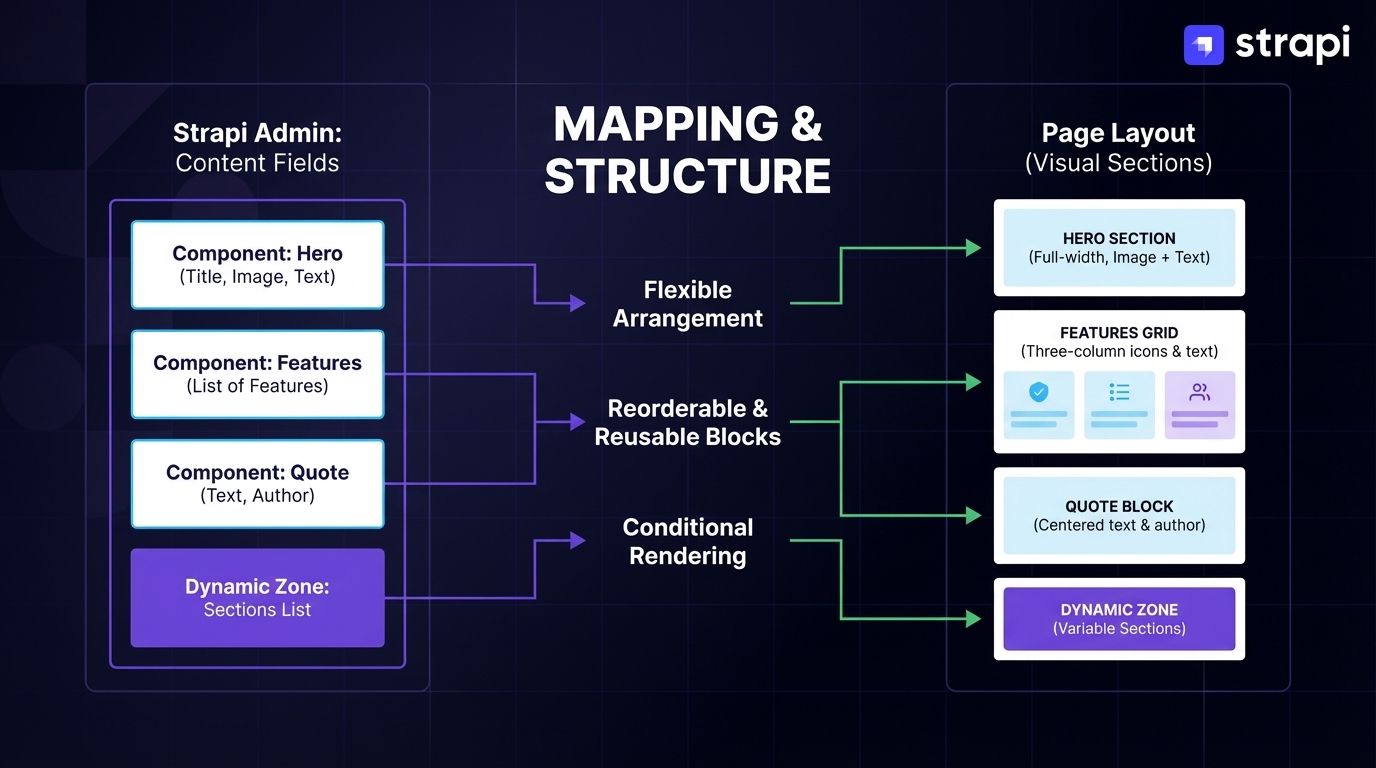 You can build pages by picking from pre-designed sections: add a testimonial block, move it above the pricing table, remove the FAQ section for this campaign. No developer needed.
Dynamic Zones in Strapi allow content types to accept different component arrangements dynamically. The official models documentation explains that Dynamic Zones are defined as a field type that accepts multiple predefined components, enabling flexible page composition. For page building, this means you can add, remove, and reorder components within a zone at runtime by selecting from an approved list of component types, without modifying code.
In the Content-Type Builder, add a Dynamic Zone field to your Page content type and select which Components it accepts. This creates a "component library" approach: developers build and maintain section Components (Hero, PricingTable, FAQ, TestimonialGrid), and you compose pages by selecting from this library.
The guardrails matter: by limiting which Components can appear in a Dynamic Zone, you prevent layout chaos while enabling flexibility. A marketing landing page might allow Hero, FeatureGrid, Testimonial, PricingTable, and CTABar components, but not BlogPostList or ProductCatalog components that belong on other page types.
For teams needing visual page composition beyond what native Dynamic Zones offer, third-party integrations provide production-ready drag-and-drop editing. While some teams are satisfied with Strapi's native Dynamic Zones for flexible composition, others require additional tools for more complex requirements.
5. Long-Form Content That Looks Close to the Final Page
Articles, blog posts, and long-form content often live in plain text fields or basic rich-text editors that don't resemble the final design. You write in a generic editing interface, trying to imagine how your carefully structured article (with headings, pull quotes, embedded media, and lists) will render on the actual page. Structure, emphasis, and media placement are hard to judge when the editing experience looks nothing like the published result.
Adding Block Editors for WYSIWYG Content
You can format articles in an interface that looks like the published page. Bold text stays bold, headings appear as headings, images appear where you place them. No more guessing how your structure will render.
Strapi 5 includes a native Rich Text (Blocks) editor as a built-in field type with zero installation required. It provides JSON-based block structure with support for headings, lists, quotes, and media. The official documentation notes this native option suits projects with basic rich text requirements and developers can customize it programmatically beyond UI configuration options.
To use it, select "Rich text (Blocks)" when adding a field to your content type in the Content-Type Builder. The editor appears in the admin panel when you create entries, offering formatting controls and media library integration. The Strapi Quick Start confirms this native Rich Text (Blocks) editor is production-ready and requires zero installation, functioning natively in both Strapi v4 and v5.
The official CKEditor 5 integration (version 1.1.1) provides the most mature and fully vendor-supported rich text editor option for Strapi 5:
npm install @ckeditor/strapi-plugin-ckeditorYou need to configure Content Security Policy in config/middlewares.js (see the official repository for specifics) or the editor won't load.
For teams requiring Strapi 4 or 5 support, the community-maintained CKEditor offers dark theme support, fullscreen expansion, and responsive image handling, but you must use version 3.x.x for Strapi 4 and version 6.x.x for Strapi 5.
For enhanced typography controls while maintaining native Blocks compatibility, Rich Text Blocks Extended adds configurable font families, custom color palettes, and viewport-specific image dimensions.
The key to closing the long-form content gap is matching your editor capabilities to your frontend design system. Configure toolbar options, allowed blocks, and character limits to mirror what's actually supported in your published pages. If your design system doesn't support seven heading levels, don't offer them in the editor. If image captions are needed, make that field mandatory in the media block configuration.
The Admin Panel customization documentation shows that Strapi's native Rich Text (Blocks) editor supports programmatic customization beyond UI settings, giving developers fine-grained control over what you can create.
Closing the Visual Gap Without Losing Headless Flexibility
Visual editing platforms deliver measurable gains: enterprise case studies show content creation cycles reduced from weeks to minutes. These represent fundamental shifts in content team autonomy and velocity.
Organizations implementing visual editing capabilities report significant return on investment, with visual editing features contributing to substantial reductions in developer dependencies for content updates.
Start with Dynamic Zones to structure your pages. This gives you flexible page composition without any additional tools. Add Static Preview to check your work in your actual frontend before publishing. Then evaluate whether Live Preview's real-time updates justify the Growth plan investment for your team. For rich text editing, the native Blocks editor handles basic needs, while CKEditor provides advanced WYSIWYG capabilities.
As Strapi continues enhancing Live Preview capabilities and the broader ecosystem develops more visual editing integrations, the gap between headless power and editor-friendly workflows will only narrow. Teams implementing these features today position themselves to take advantage of that evolution without architectural rewrites.