Whether you’re building a product solo, working with clients, or maintaining a CMS for a growing team, the starting point is usually the same.
You define content types, expose them through APIs, and consume that content in your application. Editors work in a structured interface, developers get predictable data, and the CMS stays focused on content.
That already covers a lot — but rarely everything.
Real products quickly introduce needs that go beyond content modeling: custom backend logic, admin workflows, or UI extensions that reflect how content is actually created and reviewed. When that happens, it’s important to know whether the CMS can adapt to additional requirements and scale with the product. This is about avoiding situations where small needs later force difficult architectural decisions.
This is where Strapi starts to matter.
Strapi is designed to be extended through plugins. Plugins are the mechanism Strapi provides to adapt the CMS to your project: adding backend logic, extending APIs, and customizing the admin interface when needed — without pushing those needs outside the CMS you already rely on.
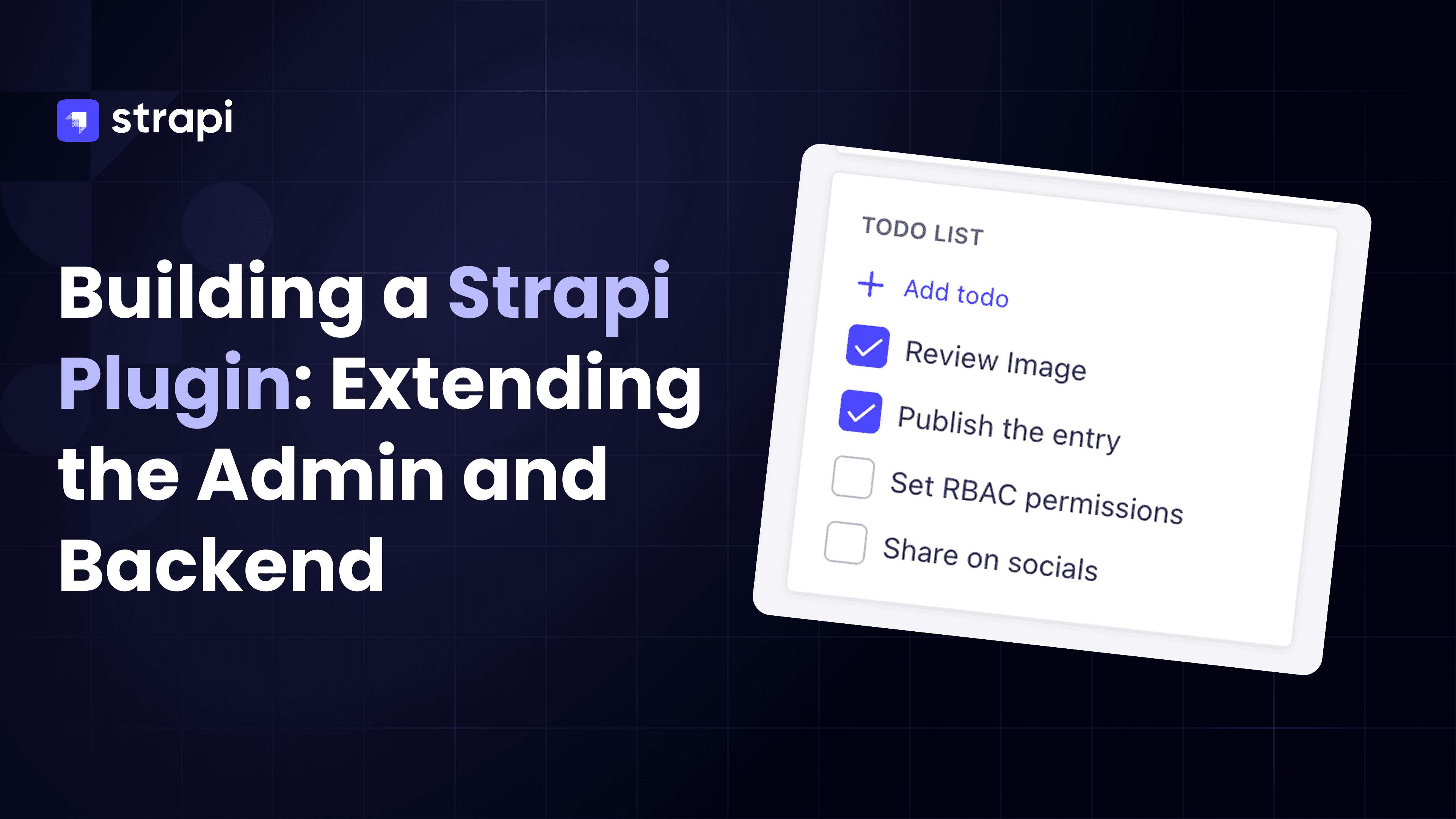
In this article, we’ll make this concrete by building a small but real Strapi plugin: a todo list that integrates directly into the admin panel and attaches itself to any content type.
Let’s get started!
Installing Strapi
To get started, you'll need a Strapi project to work with. You can follow the official quick-start guide, or simply run the following command:
npx create-strapi-app@latest my-strapi-projectOnce the installation is finished you can navigate into the newly created folder and start Strapi in development mode:
cd my-strapi-project && npm run developWhen Strapi starts, it will open in your browser at http://localhost:1337/admin/auth/register-admin. The first screen prompts you to create an admin user for your application. Once that’s done, you’ll land in the Strapi admin and can start building.
At this point, you have a working Strapi project and a clean starting point for plugin development.
Bootstrapping a Strapi plugin with the Plugin SDK
After you’ve installed Strapi and created your admin user you are now ready to start developing your plugin!
Strapi provides an official plugin SDK that takes care of structure and conventions for you. From the root of your project, run:
npx @strapi/sdk-plugin init todoThis command launches an interactive CLI that asks a few questions about your plugin. Based on your answers, it generates a blank plugin inside src/plugins/todo.
Once the plugin has been bootstrapped, you can enable it by updating ./config/plugins.ts
export default () => ({
  // ...
  'todo': {
    enabled: true,
    resolve: 'src/plugins/todo'
  },
  // ...
})
With that in place, Strapi will load your plugin at startup.
Building your plugin
At this point, Strapi is running and your plugin is enabled — but there’s one important detail to be aware of before you start writing code.
When you run strapi develop, Strapi does not compile plugin code for you. Plugin code is built separately, which means that while developing your plugin you’ll need to run an additional build process.
From the plugin directory, start the watch command:
cd src/plugins/todo && npm run watchThis watches your plugin files and rebuilds them as you make changes.
This separation is intentional. In Strapi, plugins are treated as isolated units, with their own dependencies and build lifecycle, rather than as hidden parts of the main application. Keeping plugin builds explicit makes the boundary between the application and its extensions clear, and avoids coupling plugin development to the core dev process.
Creating a content type
In Strapi, everything you store is a content type. Whether it’s an Article, a Product, or a User profile, the data lives in a model with a schema — and Strapi uses that schema to generate the database structure, admin behavior, and API layer.
A plugin doesn’t change that. Even if the UI and logic live inside the plugin, the data still needs a place to live.
So if our todo plugin is going to store tasks, we need a content type for them — and we’ll define it inside the plugin, so the whole feature (UI + backend + data model) stays self-contained.
The easiest way to do this is with the Strapi generator CLI:
npm run strapi generate content-typeRunning this command will open up another interactive CLI. In there you can specify the name of the content type as well as add some attributes.
When prompted:
- name the content type
task - add attributes:
name(text) anddone(boolean) - choose to add it to the existing
todoplugin - allow the CLI to generate API-related files
Don’t forget to select the option to add the model to your existing todo plugin and to bootstrap API related files.
Once the generator finishes, you’ll see new files for the task content type: a schema, service, controller, and routes — all scoped to the plugin.
By default, every content type in Strapi is exposed through the Content API. That’s usually what you want: content types are meant to be queried by frontends and external consumers.
In this case, it’s not.
Tasks are an internal, admin-only concern. They exist purely to support editors while working in the admin panel, and should not be reachable from the public Content API.
For that reason, we’ll move the generated routes from the Content API to the Admin API, making the task content type accessible only inside the admin context.
To do that:
- Move the generated route file
src/plugins/todo/server/src/routes/content-api/task.tsto thesrc/plugins/todo/server/src/routes/admin folder. You will then end up with the following filesrc/plugins/todo/server/src/routes/admin/task.ts
/**
 * Task router
 */

import { factories } from '@strapi/strapi';

export default factories.createCoreRouter('plugin::todo.task');- Update
src/plugins/todo/server/src/routes/admin/index.tsfile to register those routes as admin routes
import task from './task';
export default () => ({
  type: 'admin',
  routes: [...task.routes],
});- Update
src/plugins/todo/server/src/routes/content-api/index.tsto replace the content API routes with an empty definition
export default () => ({
  type: 'content-api',
  routes: [],
});
This keeps the task API private to the admin context, which is exactly what we want.
Known issue with generated routes
When generating content types with the CLI, you may run into a small TypeScript edge case when registering admin routes.
You might see an error like:
[ERROR] server/src/routes/admin/index.ts:4:15 - TS2488:
Type'Route[] | (() => Route[])' must have a'[Symbol.iterator]()' method that returns an iterator.
This is a typing issue only — the routes work correctly at runtime. You can safely fix it by adding a @ts-expect-error when spreading the routes:
import task from'./task';

exportdefault () => ({
type:'admin',
// @ts-expect-error
routes: [...task.routes],
});
Polymorphic relation
Each task should be associated with whatever content entry it belongs to — articles, pages, users, or any other type. To support that, the relation needs to be polymorphic.
In this context, polymorphic simply means the relation isn’t tied to one specific content type. A task can point to different kinds of entries, depending on where it’s created in the admin panel.
Update the src/plugins/todo/server/src/content-types/task/schema.json schema to add a morphToMany relation called related,
{
    "kind": "collectionType",
    "collectionName": "tasks",
    "info": {
        "singularName": "task",
        "pluralName":"tasks",
        "displayName":"Task"
    },
    "options": {
        "draftAndPublish": false
    },
    "pluginOptions": {
        "content-manager": {
            "visible": false
        },
        "content-type-builder":{
            "visible": false
        }
    },
    "attributes": {
        "name": {
            "type": "text"
        },
        "done": {
            "type": "boolean"
        },
        "related": {
            "type": "relation",
            "relation": "morphToMany"
        }
    }
}
At this point, the task content type has three fields:
namedonerelated
That’s all we need.
Fetching related tasks with a custom admin API route
Now we need a way to fetch all tasks linked to the entry currently being edited. The catch is that Strapi doesn’t support filtering on polymorphic relations out of the box (see the FAQ).
So we’ll add a custom service method that:
- looks up task IDs in the polymorphic relation table, then
- fetches the matching task documents.
Open server/src/services/task.ts and extend the core service with findRelatedTasks:
/**
 * Task service
*/

import { factories } from '@strapi/strapi';

export default factories.createCoreService('plugin::todo.task',({ strapi }) => ({
    async findRelatedTasks(relatedId:string,relatedType:string) => {
        const taskIds = await strapi.db.connection('tasks_related_mph')
            .select('task_id')
            .where({
                related_id: relatedId,
                related_type: relatedType,
            });
        return strapi.documents('plugin::todo.task').findMany({
            filters: {
                id: { $in: taskIds.map(({ task_id }) => task_id) },
            },
        });
    },
}));
Next, expose this method through a custom controller action. Open server/src/controllers/task.ts and add findRelatedTasks:
/**
 * Task controller
 */

import { factories } from '@strapi/strapi';

export default factories.createCoreController('plugin::todo.task',({ strapi }) => ({
asyncfindRelatedTasks(ctx) {
    const { relatedId, relatedType } = ctx.params;
    const tasks = await strapi
      .service('plugin::todo.task')
      .findRelatedTasks(relatedId, relatedType);

    ctx.body = tasks;
  },
}));
Finally, register an admin route that calls this controller. Update server/src/routes/admin/index.ts:
import task from'./task';

export default () => ({
    type:'admin',
    routes: [
        // @ts-expect-error
        ...task.routes,
        {
            method:'GET',
            path:'/tasks/related/:relatedType/:relatedId',
            handler:'task.findRelatedTasks',
        },
    ],
});
With this in place, the admin panel can request related tasks for the current entry using a single endpoint — which we’ll use later when building the sidebar UI.
Cleaning up the admin UI
Now that the backend pieces are in place, it’s time to prepare the admin side.
The generated content type appears in the Content Manager and Content-Type Builder by default.
Because tasks are meant to be managed through the plugin UI (not as standalone entries), we’ll hide the Task content type from the Content Manager and the Content-Type Builder. You can do this by updating the schema of the Task content type at src/plugins/todo/server/src/content-types/task/schema.json:
{
    "pluginOptions": {
        "content-manager": {
            "visible": false
	    },
    	"content-type-builder": {
		    "visible": false
	    }
	}
}
The plugin also comes with its own menu entry and page. Since this plugin only adds functionality inside the Content Manager, you can remove:
- the plugin icon by removing
src/plugins/todo/admin/src/components/PluginIcon.tsxfile - the plugin pages by deleting
src/plugins/todo/admin/src/pages/folder - the corresponding menu registration from the
src/plugins/todo/admin/src/index.tsfile
Creating the sidebar panel
The core of this plugin lives in the Content Manager edit view. We’ll add a custom sidebar component that will appear within the edit screen of a content document and will list all the tasks related to it.
To do so, you’ll have to create a new component in your plugin. We’ll create that at src/plugins/todo/admin/src/components/TodoPanel.tsx:
import React from "react";
import { unstable_useContentManagerContext as useContentManagerContext, type PanelComponent } from '@strapi/content-manager/strapi-admin';

const TodoPanel: PanelComponent = () => {
  return {
	  title: "Todo list",
		content: (
			<div> All my todos will be here. </div>
		),
	};
};

export default TodoPanel;
Once we’ve created the panel component we can now register it using the addEditViewSidePanel API provided by the Content Manager plugin. We do this in the bootstrap function of src/plugins/todo/admin/src/index.ts:
import TodoPanel from './components/TodoPanel';

export default {
	bootstrap(app: any) {
		app.getPlugin('content-manager').apis.addEditViewSidePanel([TodoPanel]);
	},
};
Once registered, the panel shows up automatically when editing entries.
Fetching and displaying tasks
At this point, the plugin has everything it needs on the backend:
a content type, admin-only routes, and a custom endpoint to fetch tasks related to a specific entry.
What’s missing is the admin-side logic that ties it all together.
Inside the Content Manager edit view, we want to:
- fetch the tasks related to the currently edited entry,
- display them inline in the sidebar,
- and update their state without reloading the page.
To handle data fetching, caching, and updates cleanly, we’ll use @tanstack/react-query. It fits well here because it lets us express “this list depends on the current document” and takes care of refetching when data changes.
First, install it as a dependency of the plugin:
npm install @tanstack/react-queryWiring React Query into the panel
React Query works through a shared QueryClient. We'll create one and wrap the panel content in a QueryClientProvider by editing ./plugin-todo/admin/components/TodoPanel.tsx, then move the task-specific logic into a dedicated TaskList component.
// ./plugin-todo/admin/components/TodoPanel.tsx

import React from 'react';
import { unstable_useContentManagerContext as useContentManagerContext, type PanelComponent } from '@strapi/content-manager/strapi-admin';
import {
  QueryClient,
  QueryClientProvider,
} from '@tanstack/react-query'
import TaskList from './TodoList';

const queryClient = new QueryClient();

const TodoPanel: PanelComponent = () => {
  return {
    title: 'Todo',
    content: (
      <QueryClientProvider client={queryClient}>
        <TaskList />
      </QueryClientProvider>
    ),
  };
};

export default TodoPanel;
Fetching and updating tasks
The TaskList component is responsible for:
- determining which entry is currently being edited,
- fetching its related tasks via the custom admin endpoint,
- rendering them as a checklist,
- and updating task state when a checkbox is toggled.
// ./plugin-todo/admin/components/TodoList.tsx

import * as React from 'react';
import { unstable_useContentManagerContext, useFetchClient } from '@strapi/strapi/admin';
import { useQuery, useMutation, useQueryClient } from '@tanstack/react-query';
import { Checkbox } from '@strapi/design-system';

const TaskList = () => {
  const { get, put } = useFetchClient();
  const { id, slug } = unstable_useContentManagerContext();
  const queryClient = useQueryClient();

  const { data, isLoading } = useQuery({
    queryKey: ['tasks', id],
    queryFn: async () => {
      return get(`/todo/tasks/related/${slug}/${id}`);
    },
  });

  const updateTaskMutation = useMutation({
    mutationFn: async ({ documentId, done }: { documentId: string; done: boolean }) => {
      return put(`/todo/tasks/${documentId}`, { data: { done } });
    },
    onSuccess: () => {
      queryClient.invalidateQueries({ queryKey: ['tasks', id] });
    },
  });

  const handleCheckboxChange = (taskId: string, currentDone: boolean) => {
    updateTaskMutation.mutate({ documentId: taskId, done: !currentDone });
  };

  if (isLoading) {
    return null;
  }

  return (
    <ul>
      {data?.data.map((task: { documentId: string; name: string; done: boolean }) => (
        <li style={{ marginTop: '12px' }} key={task.documentId}>
          <Checkbox
            checked={task.done || false}
            onCheckedChange={() => handleCheckboxChange(task.documentId, task.done)}
          >
            {task.name}
          </Checkbox>
        </li>
      ))}
    </ul>
  );
}

export default TaskList;
At this stage, the request to /todo/tasks/related is working — but the list is empty. That’s expected: we haven’t created any tasks yet.
Creating tasks from the admin panel
To add tasks directly from the Content Manager, we’ll use a modal built with the Strapi Design System.
The modal contains a small form that:
- captures the task name,
- associates it with the currently edited document,
- creates the task through the plugin’s POST route,
- and refreshes the task list when the operation succeeds.
Create a new component at admin/src/components/TodoModal.tsx:
// ./plugin-todo/admin/components/TodoModal.tsx

import { useState } from 'react';
import { Button } from '@strapi/design-system';
import { Field } from '@strapi/design-system';
import { Modal } from '@strapi/design-system';
import { unstable_useContentManagerContext, useFetchClient } from '@strapi/strapi/admin';
import { useMutation, useQueryClient } from '@tanstack/react-query';

type Props = {
  isOpen: boolean;
  onOpenChange: (open: boolean) => void;
}

const TodoModal = ({ isOpen, onOpenChange }: Props) => {
  const [taskName, setTaskName] = useState('');
  const { id, model } = unstable_useContentManagerContext();
  const { post } = useFetchClient();
  const queryClient = useQueryClient();

  const createTaskMutation = useMutation({
    mutationFn: async (data: any) => {
      return post('/todo/tasks', { data });
    },
    onSuccess: () => {
      queryClient.invalidateQueries({ queryKey: ['tasks', id] });
      setTaskName('');
      onOpenChange(false);
    },
  });

  const submitForm = () => {
    createTaskMutation.mutate({
      name: taskName,
      related: [{
        __type: model,
        id,
      }],
    });
  };

  return (
    <Modal.Root open={isOpen} onOpenChange={onOpenChange}>
      <Modal.Content>
        <Modal.Header>
          <Modal.Title>Create task</Modal.Title>
        </Modal.Header>
        <Modal.Body>
          <Field.Root name="task" required>
            <Field.Label>Task</Field.Label>
            <Field.Input
              value={taskName}
              onChange={(e: React.ChangeEvent<HTMLInputElement>) => setTaskName(e.target.value)}
            />
          </Field.Root>
        </Modal.Body>
        <Modal.Footer>
          <Modal.Close>
            <Button variant="tertiary">Cancel</Button>
          </Modal.Close>
          <Button
            onClick={submitForm}
            loading={createTaskMutation.isPending}
            disabled={!taskName.trim() || createTaskMutation.isPending}
          >
            Confirm
          </Button>
        </Modal.Footer>
      </Modal.Content>
    </Modal.Root>
  );
}

export default TodoModal;
The important detail here is the related field: we attach the task to the current document using its model type and ID, which makes the polymorphic relation work seamlessly across content types.
Connecting everything in the panel
Finally, we add a button to the sidebar panel that opens the modal and renders the task list below it:
// ./plugin-todo/admin/components/TodoList.tsx

import * as React from 'react';
import { unstable_useContentManagerContext as useContentManagerContext, type PanelComponent } from '@strapi/content-manager/strapi-admin';
import { TextButton } from '@strapi/design-system';
import { Plus } from '@strapi/icons';
import TaskList from './TodoList';
import {
  QueryClient,
  QueryClientProvider,
} from '@tanstack/react-query'
import TodoModal from './TodoModal';

const queryClient = new QueryClient();

const TodoPanel: PanelComponent = () => {
  const [modalOpen, setModalOpen] = React.useState(false);
  const { id } = useContentManagerContext();
  return {
    title: 'Todo List',
    content: (
      <QueryClientProvider client={queryClient}>
        <div>
          <TextButton
            onClick={() => setModalOpen(true)}
            startIcon={<Plus />}
            disabled={!id}
          >
            Add todo
          </TextButton>
          {id && (
            <>
              <TodoModal isOpen={modalOpen} onOpenChange={setModalOpen} />
              <TaskList />
            </>
          )}
        </div>
      </QueryClientProvider>
    )
  }
}

export default TodoPanel;
With that in place, the plugin comes together:
- tasks appear next to content,
- tasks can be created and updated inline,
- and all the logic stays scoped to the plugin.
Refreshing the admin panel now shows a fully functional todo list embedded directly in the Content Manager.
Deploying to production with Strapi Cloud
So far, everything we’ve done has been running locally. The final step is making sure the plugin is built and available in production — and then actually seeing it live.
Because plugin code is built separately from the main Strapi app, it needs to be compiled as part of the deployment process. A simple way to ensure this happens automatically is to add a postinstall script to the root package.json of your Strapi project:
{
    "scripts":{
        "postinstall":"cd src/plugins/todo && npm install && npm run build"
    }
}
This guarantees that whenever your project installs dependencies — locally, in CI, or in production — the plugin is installed and built as well.
If you’re using Strapi Cloud, you don’t need any additional setup.
Once your project is connected to Strapi Cloud, every push triggers a deployment where dependencies are installed and build steps are executed. With the postinstall script in place, your plugin is compiled automatically during that process.
After the deployment finishes, open your Strapi Cloud project, navigate to the Content Manager, open any entry, and you should see your todo sidebar panel — just like in local development.
At this point, the plugin is running in production, inside the same admin your editors use every day.
GitHub Repo
The complete code can be found here: https://github.com/strapi-community/plugin-todo
Final words
This plugin is intentionally small, but it mirrors how real Strapi extensions are built and shipped.
You defined a data model, scoped it to a plugin, exposed only the APIs you needed, and extended the admin interface where editors actually work. Nothing lives outside the system, and nothing special is required to deploy it.
That’s the core idea behind Strapi plugins: they let you adapt the CMS to your product without turning customization into a separate project.
If you want to explore further, the full plugin code is available on GitHub, and the Strapi community is always a good place to go deeper — whether you’re refining an internal workflow or building something meant to be reused by others.